
Operating System
Cyber threats are evolving faster than ever, but Windows users can take proactive steps to lock down their systems. These 10 proven tactics—from built-in security features to behavioral habits—will transform your PC into a fortress against hackers, malware, and data breaches.
Enable Windows Security Center with Advanced Threat Protection
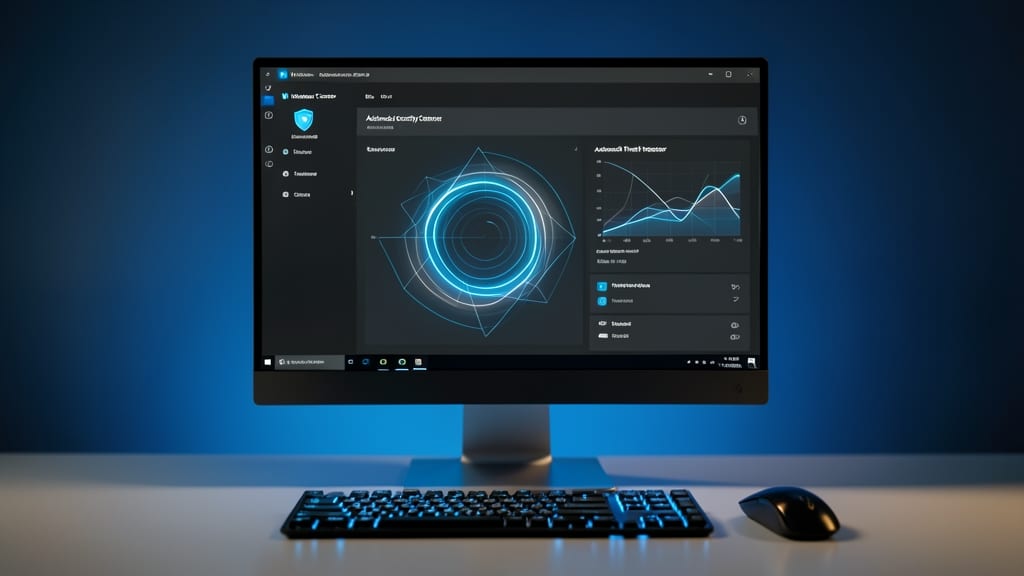
Tired of juggling third-party antivirus tools that slow down your system? Windows Security Center with Advanced Threat Protection delivers enterprise-grade defense—built right into Windows 11—without the bloat. Microsoft Defender’s AI-powered engine analyzes behavior in real time, stopping zero-day exploits before they even reach your files.
This feature combines cloud-delivered protection, offline scanning, and exploit mitigation to block ransomware, spyware, and phishing attempts. The Advanced Threat Protection dashboard gives you granular control over attack surface reduction, like blocking known malicious IPs or disabling vulnerable protocols. Best of all, it runs silently in the background, using minimal system resources.
Perfect for power users, remote workers, or anyone tired of antivirus pop-ups, this is the ultimate "set and forget" security layer. No subscriptions, no performance hits—just smart, automated defense. ✨
Use BitLocker for Full-Disk Encryption
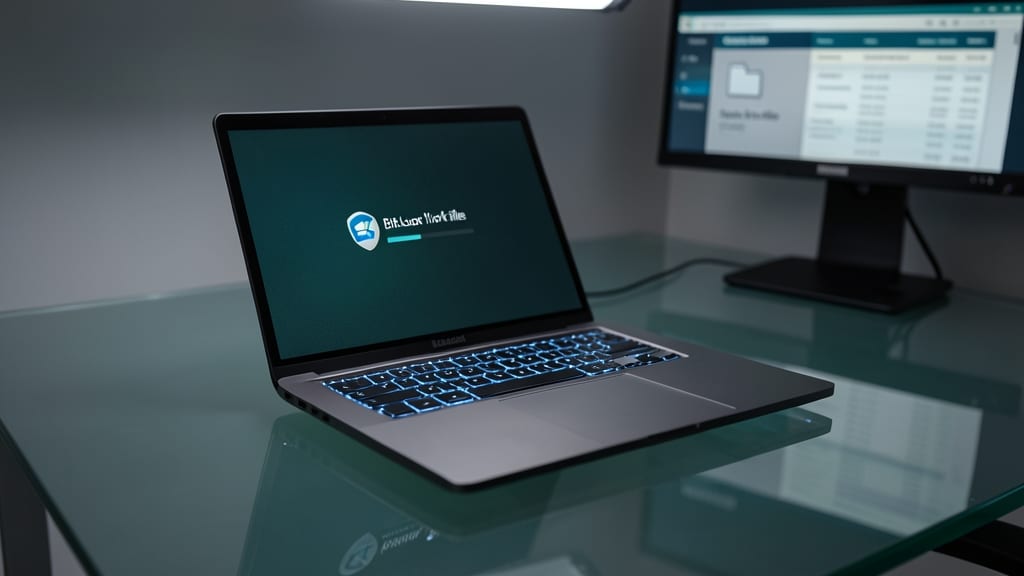
If your laptop contains sensitive work files, client emails, or financial data, BitLocker turns your device into an unbreakable vault. Unlike file-level encryption, it secures everything—your operating system, documents, and even deleted files—using AES-256 encryption, the same standard used by governments and banks.
Setting it up takes minutes: just enable it in Windows Settings > BitLocker and choose a PIN, USB key, or Microsoft Account for recovery. For travel laptops, the TPM 2.0 chip (built into most modern PCs) handles encryption automatically, so performance stays smooth. Even if your device is stolen, attackers won’t access your data without the decryption key.
This is non-negotiable for consultants, healthcare workers, or anyone with confidential data. It’s also a free, built-in feature—no third-party tools needed. 💻
Implement Least Privilege Principle with User Accounts
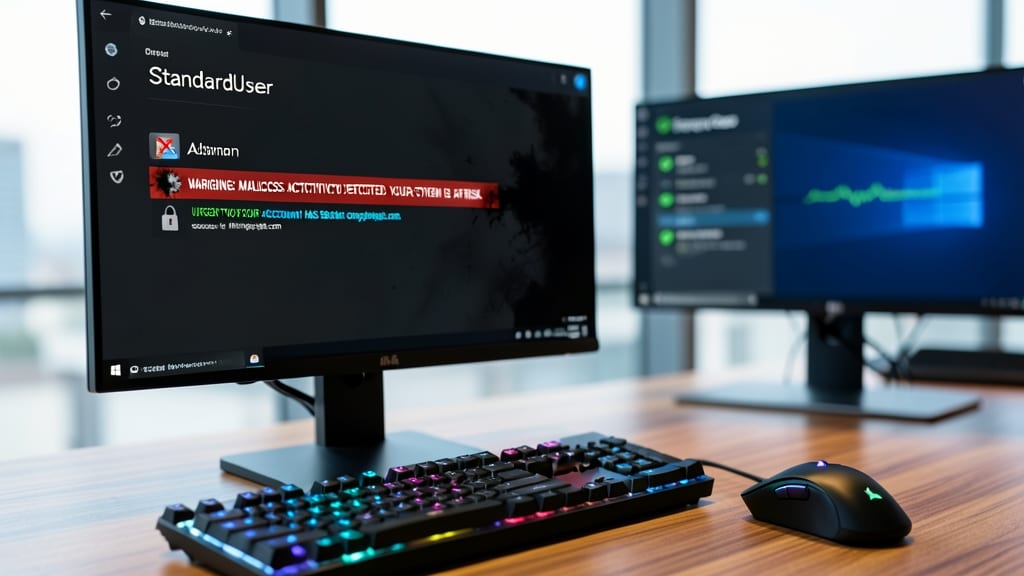
Most malware infections start with a single click—then escalate when the victim’s admin account lets malicious software install system-wide. The fix? Standard user accounts by default, which block unauthorized changes without sacrificing functionality for everyday tasks.
Windows makes this effortless: Navigate to Settings > Accounts > Family & other users, then click "Add someone else to this PC." Choose Standard User (not Admin) for each account. This limits malware to user-specific folders, preventing it from hijacking your entire system. Even better, Microsoft’s User Account Control (UAC) adds another layer by prompting for admin approval before critical changes.
This is the perfect setup for families, shared workstations, or public PCs where multiple users need access. Kids, interns, or guests can browse safely without risking your main system. ⚡
Disable Macros in Office Files
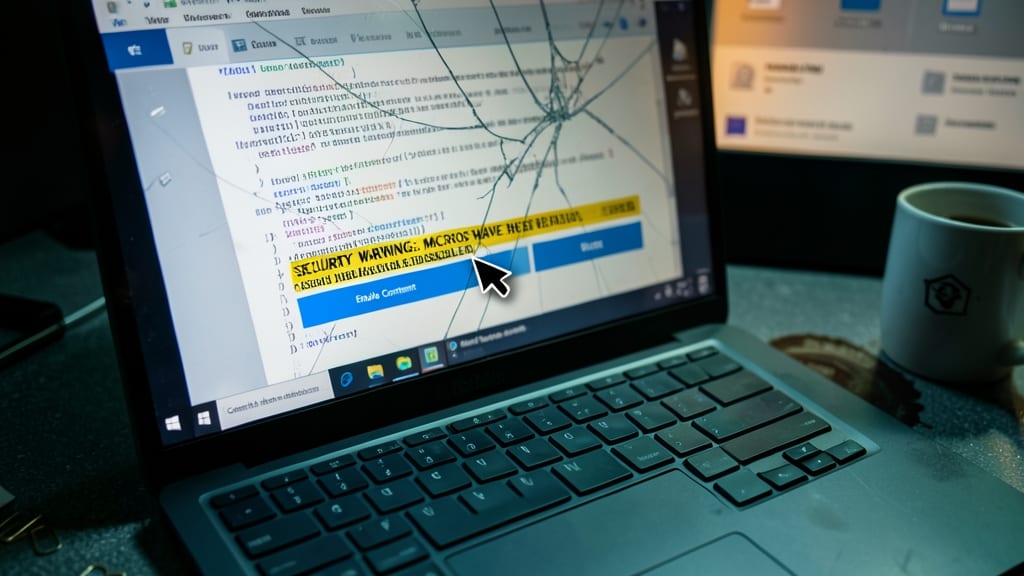
If you’ve ever clicked "Enable Content" on a suspicious email attachment, you’ve just handed hackers a backdoor into your system. Macros in Office files are a favorite tool for malware like Emotet and QakBot, which exploit them to install ransomware or spyware the moment you open a document.
Disabling macros in Word and Excel is a zero-configuration fix that blocks this attack vector entirely. In Word, go to File > Options > Trust Center > Trust Center Settings > Macro Settings and select "Disable all macros without notification." Repeat for Excel via File > Options > Trust Center > Macro Settings. This stops malicious scripts from running while still allowing legitimate macros in trusted files.
This setting is non-negotiable for accountants, legal professionals, or anyone who frequently opens files from emails or downloads. It’s a one-click upgrade that could save you from a crippling malware infection. ✨
Enable Windows Sandbox for Testing Suspicious Files
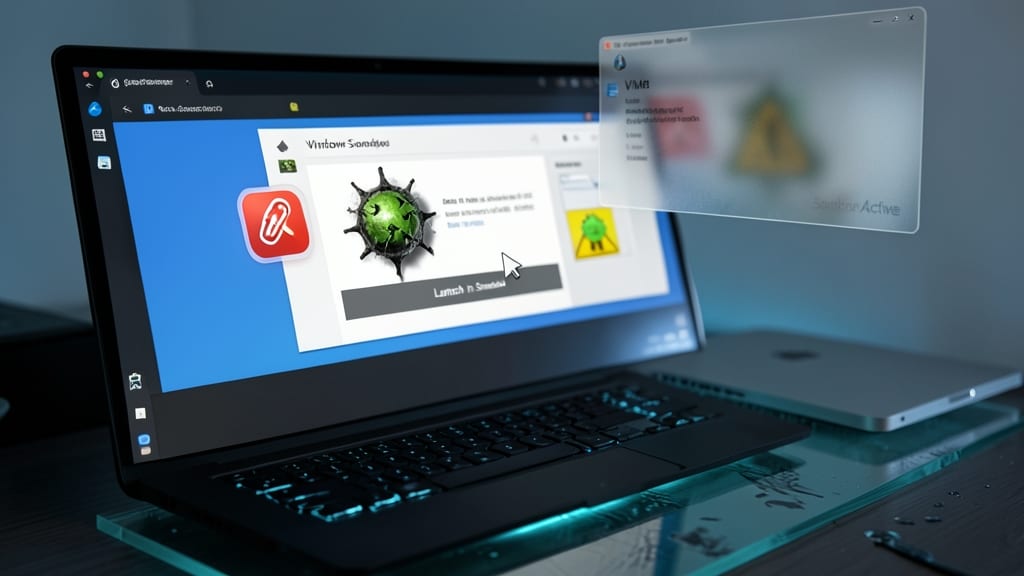
Curious about that sketchy email attachment or shady download? Windows Sandbox turns your PC into a digital quarantine zone—launching suspicious files in a fully isolated virtual machine that deletes itself when closed. No risk to your real system, no complex VM setup.
Built into Windows 10/11 Pro/Enterprise, it requires just 1GB RAM and 20GB disk space (adjustable) and runs apps at near-native speed. Copy-paste works both ways, so you can analyze behavior without exposing your host. Perfect for testing malware samples, cracked software, or even questionable browser extensions.
Cybersecurity researchers and IT admins will love this zero-config sandbox—it’s faster to deploy than VirtualBox and safer than dual-booting. Just enable it in Turn Windows features on or off and start testing with confidence. ✨
Secure Wi-Fi with WPA3 and Disable WPS
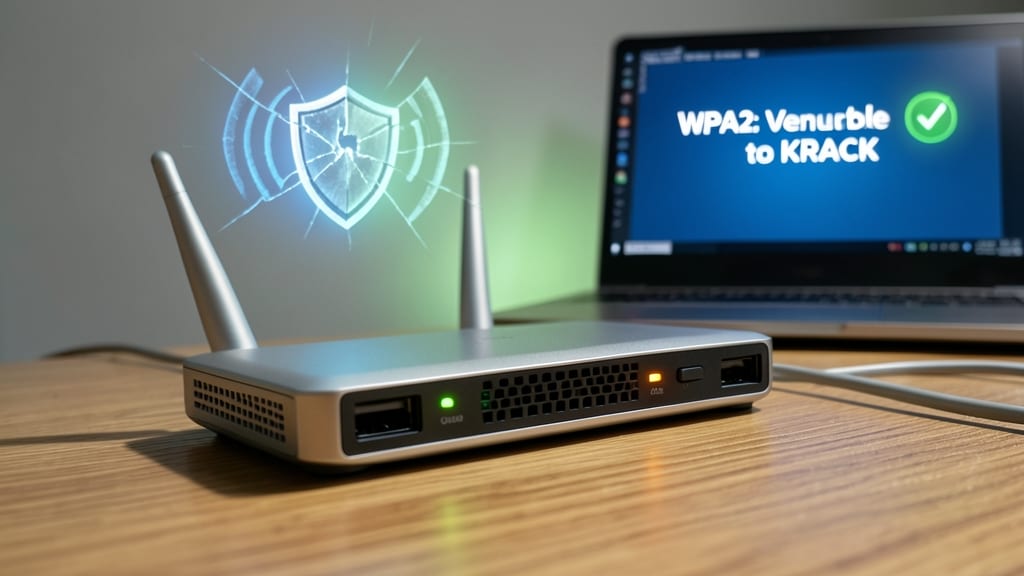
Your Wi-Fi network is the front door to your digital life—yet many routers still use outdated WPA2, leaving it vulnerable to attacks like KRACK. Upgrading to WPA3 adds forward secrecy, making it nearly impossible for hackers to decrypt past sessions even if they crack your password today.
The Wi-Fi Protected Setup (WPS) feature, often enabled by default, is a security nightmare. It relies on a static PIN that can be brute-forced in minutes, granting attackers access to your network. Disabling WPS in your router’s admin panel removes this exploit entirely while keeping your IoT devices and remote work connections secure.
This tweak is a must for anyone with smart home gadgets or who connects to public networks frequently. It’s a zero-cost upgrade that takes less than five minutes to implement—yet delivers enterprise-grade protection. ✨
Automate Software Updates with Windows Update Service
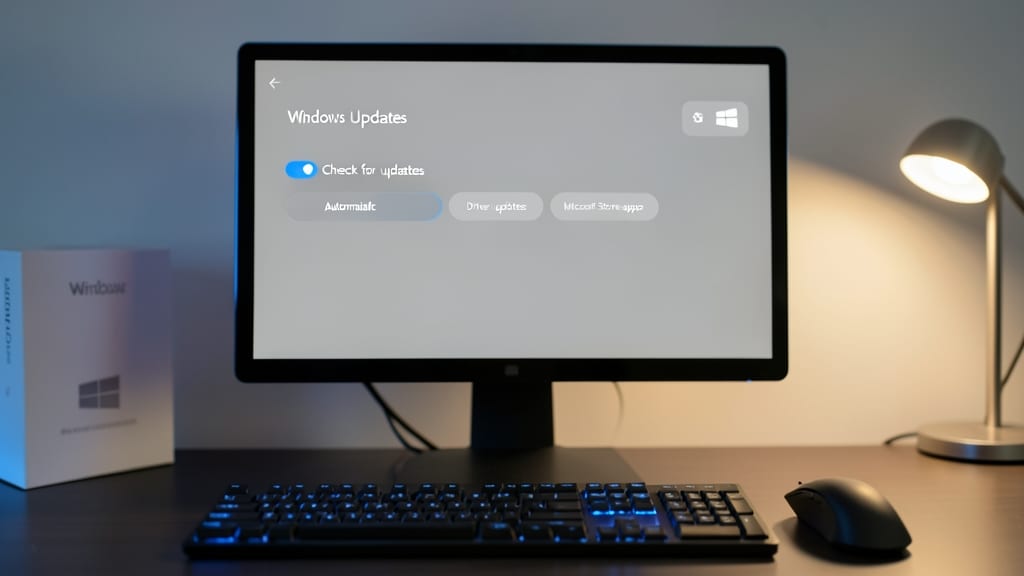
Forget about manually checking for updates every month—Windows Update Service does the heavy lifting for you. With just a few clicks, you can enable automatic updates for Windows, drivers, and Microsoft apps, ensuring your system stays patched against the latest threats without lifting a finger.
This built-in feature delivers critical security patches and performance improvements as soon as they’re available, often before hackers can exploit known vulnerabilities. You can customize the schedule (e.g., during off-hours) and even pause updates temporarily if needed. It’s the easiest way to close security gaps for users who’ve never bothered with manual updates before.
Non-technical users, parents managing family PCs, or anyone tired of update reminders will love how this zero-effort solution keeps their system secure. ✨
Deploy a Password Manager for Credential Protection
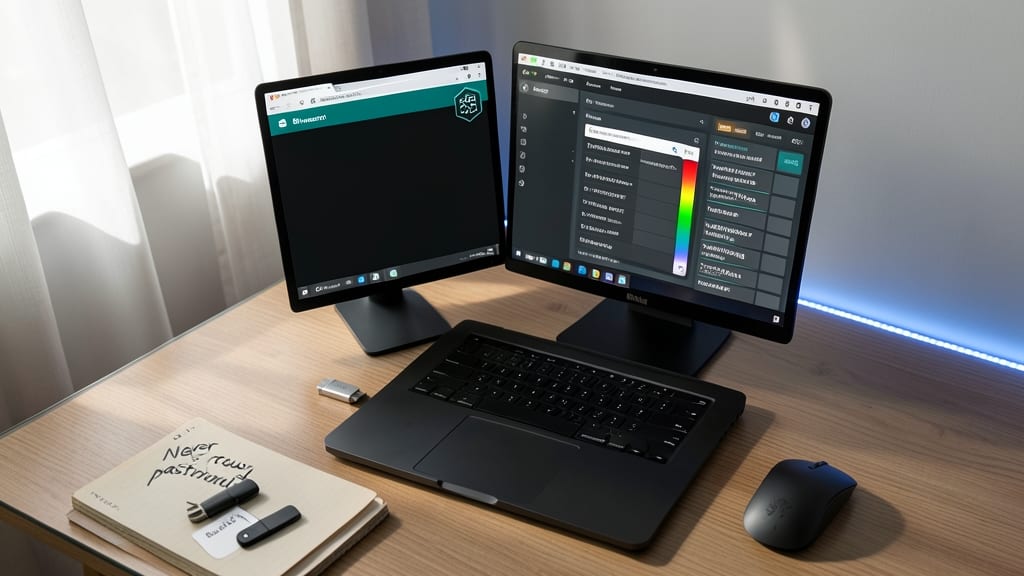
Tired of reusing the same weak password across every account? A password manager like Bitwarden or KeePass turns your browser’s saved passwords into a 256-bit encrypted vault, making credential stuffing attacks obsolete. These tools auto-fill complex passwords, sync across devices, and even generate unique ones for every service—no more sticky notes or "Password123" risks.
With open-source options (KeePass) or cloud-synced alternatives (Bitwarden), you get end-to-end encryption and two-factor authentication (2FA) support. The best part? They’re free for personal use, blocking phishing attempts by verifying sites before auto-fill. For remote workers or freelancers juggling client logins, this is the single most effective way to stop breaches before they start.
Perfect for developers managing APIs, small business owners with multiple platforms, or anyone who’s ever clicked "Forgot Password?" one too many times. 💻
Monitor Network Traffic with Windows Firewall Rules
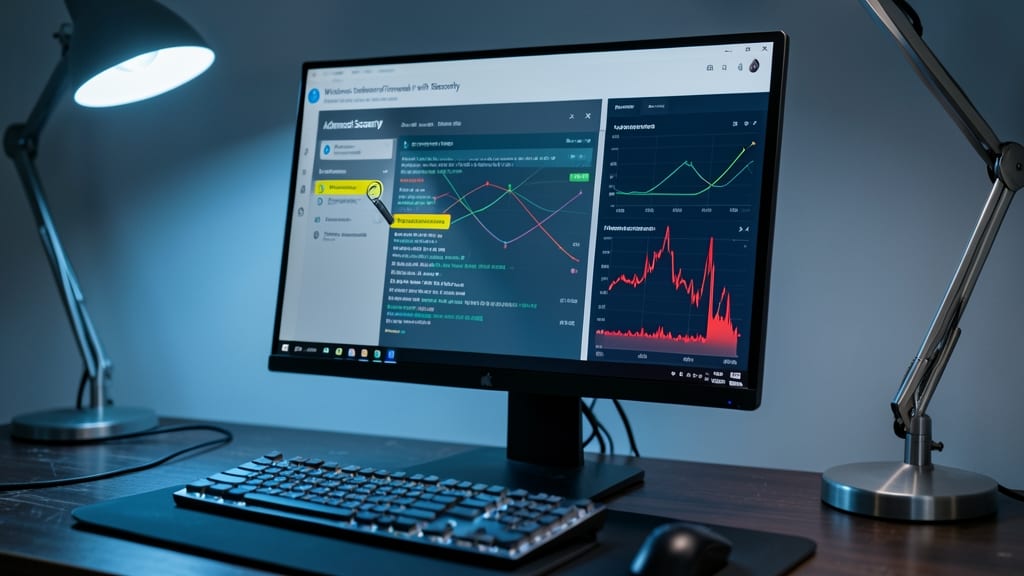
Worried about hidden data leaks or suspicious connections lurking on your PC? Windows Firewall’s Advanced Security lets you create granular rules to block unauthorized inbound/outbound traffic, including command-and-control (C2) channels used by malware.
Start by opening Windows Defender Firewall with Advanced Security (search for it in Start) and creating custom rules for specific apps or ports. For example, block all outbound connections from unknown executables or restrict RDP access to trusted IPs only. The logging feature tracks blocked attempts, helping you spot intrusions early.
This is your first line of defense against data exfiltration—ideal for freelancers, journalists, or anyone handling sensitive work. 💻
Educate Users on Phishing and Social Engineering
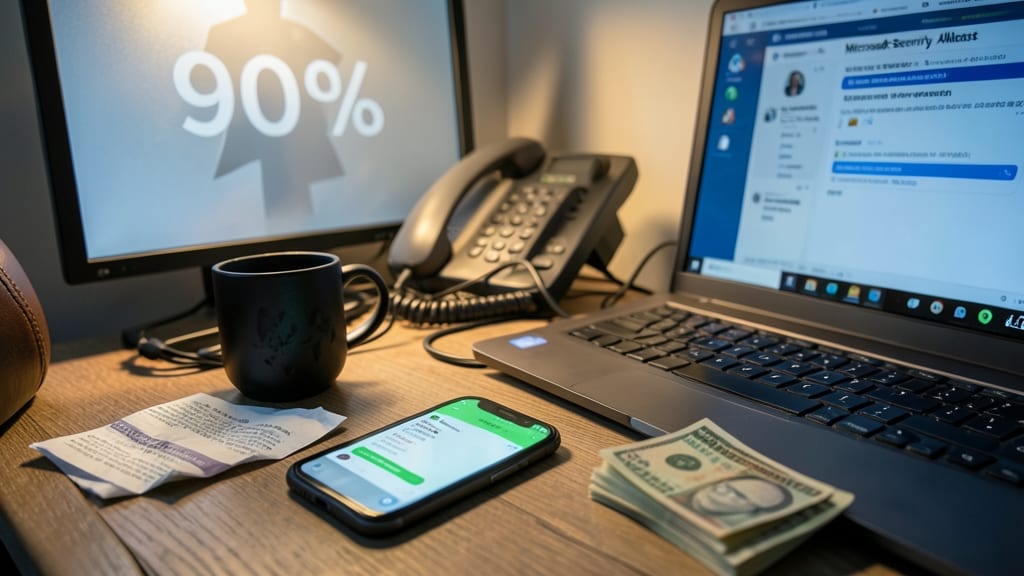
Most cyberattacks start with a simple trick—tricking you. Phishing emails, smishing texts, and vishing calls account for 90% of all breaches, yet many users still fall for them. The good news? You can train yourself (and your family) to spot these scams using free, no-tech-required resources like Microsoft’s Security Baseline or the FBI’s Internet Crime Complaint Center.
Start with Microsoft’s Security Awareness Training—a zero-cost, interactive module that teaches you to recognize urgent-sounding emails, mismatched sender info, and fake login pages. For text messages, enable carrier-level smishing filters (available on iOS and Android) and never click links from unknown numbers. Even a 10-minute weekly drill sharpens your skills faster than any antivirus.
This is especially critical for small businesses (where one click can unlock company data) or families with tech-savvy kids (who might receive scam messages before adults do). Turn phishing into a game—test each other with real-world examples from sites like KnowBe4’s Phish Test. 💡