
Tip & Trick
Struggling to find files in your Microsoft ecosystem? Consistent file naming conventions save time, reduce errors, and make collaboration seamless. These proven best practices will transform your digital organization—whether you use Windows, OneDrive, or Office 365.
Date-Based Prefix Format for All Files
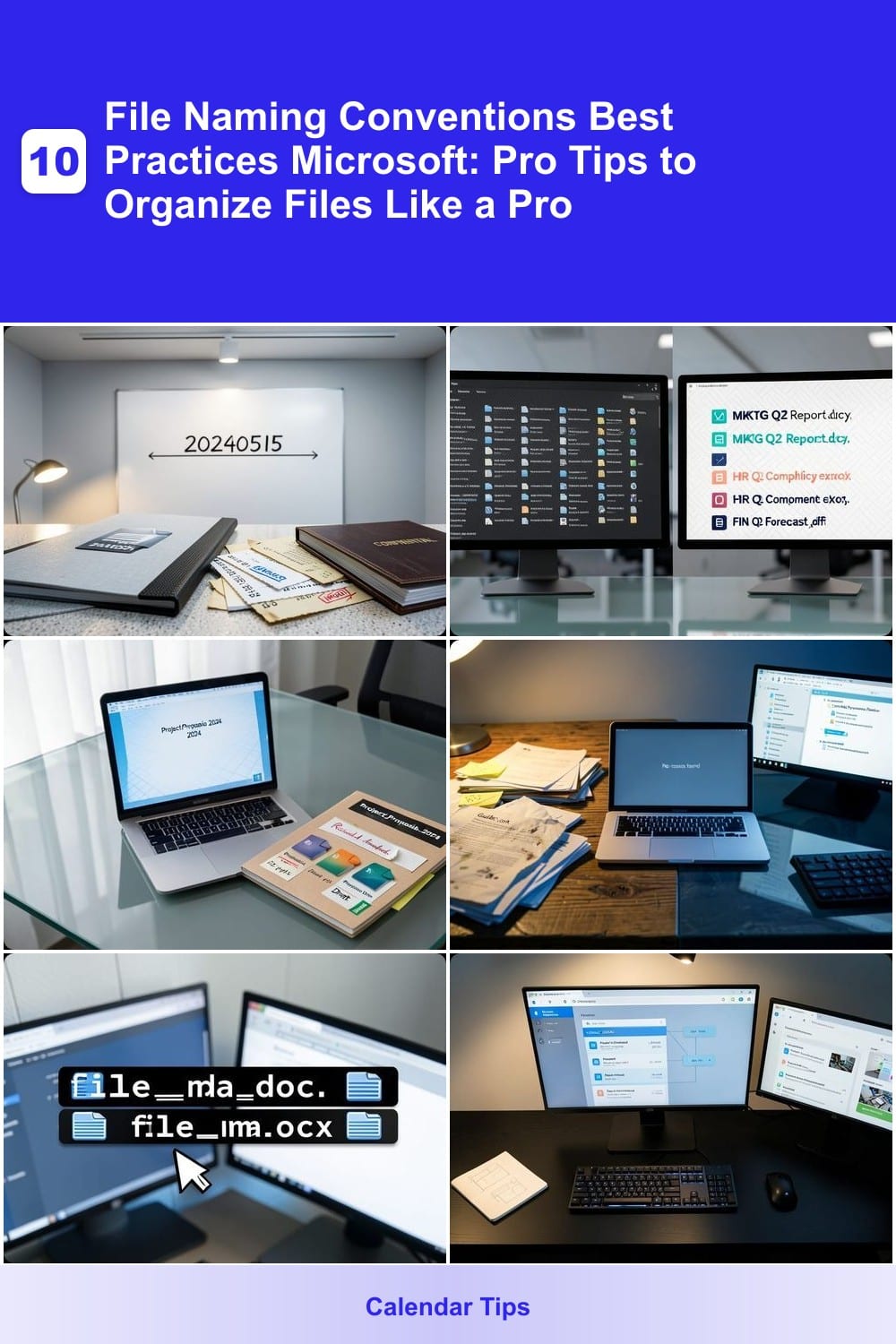
If deadlines and version tracking make your files a chaotic mess, a date-based prefix could be your secret weapon. Teams in legal, finance, or project management swear by this system—where every file starts with YYYYMMDD (e.g., 20240515ProjectXFinalDraft.docx)—to instantly sort and verify when a document was created or finalized.
Microsoft’s Windows Explorer and OneDrive handle this format flawlessly, letting you sort files chronologically with a single click. The YYYYMMDD structure avoids ambiguity (unlike "May 2024" vs. "05/2024") and integrates seamlessly with SharePoint metadata filters. For teams with tight deadlines, this method also doubles as a built-in audit trail.
Perfect for industries where compliance or deadlines are critical, this system turns file chaos into a structured, searchable library. 💻
Department-Specific Code System
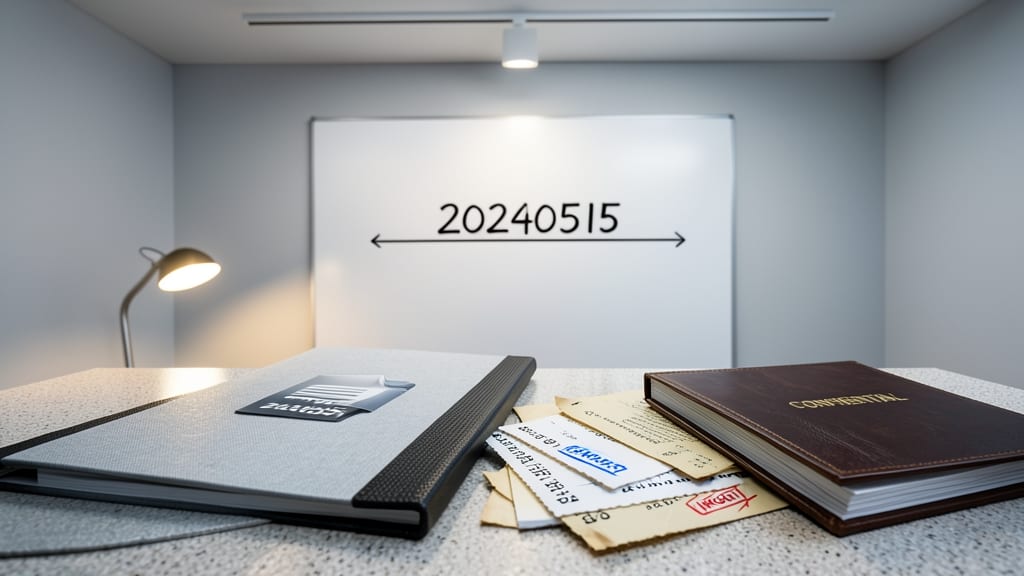
Tired of digging through shared drives to find that Q2Report buried under 50 similarly named files? A department-specific code system solves this by embedding a 3-letter department prefix (e.g., MKTG, HR, FIN) directly in filenames. This creates instant visual filters—no more guessing whether Sales2024.xlsx belongs to Marketing or Finance.
The magic happens when you combine it with consistent date suffixes (like MKTG2024Q2Report.xlsx). Microsoft’s OneDrive and SharePoint automatically sort these files chronologically and by department, while Power Automate can route files to the right teams based on the prefix. Plus, it works flawlessly with Windows Search—just type MKTG to pull up all marketing files instantly.
This system is a game-changer for enterprises with cross-functional teams (think agencies, corporations, or universities). It’s especially useful when multiple departments collaborate on shared projects—like when Legal needs to review Marketing’s Q2 campaign files. ⚡
Version Control with Suffix Numbers
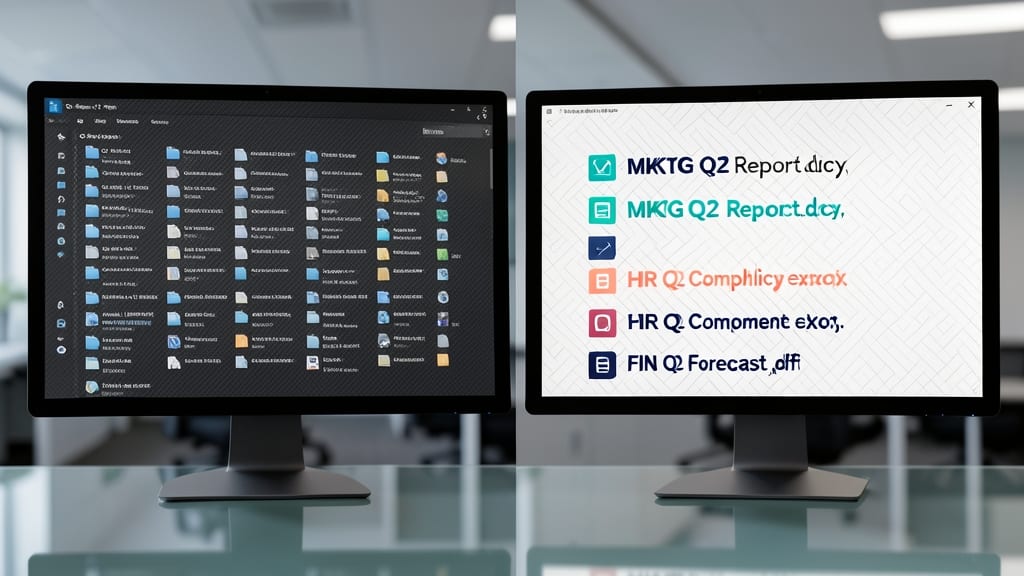
Tired of losing track of which PowerPoint file is the final version and which is a draft? The suffix numbering system (-v1, -v2, -Final) solves this instantly by clearly marking each iteration.
Microsoft PowerPoint’s built-in version history works seamlessly with this method—simply append -v1 to your first draft, -v2 to revisions, and -Final to the approved version. This approach also syncs perfectly with OneDrive and SharePoint, where file versions are automatically tracked. For teams, it eliminates the chaos of "Which one is the latest?" emails.
This system is ideal for presentations, reports, and collaborative projects where multiple edits happen before finalization. It’s simple, scalable, and works across all Microsoft Office apps. ✨
Keyword-First Naming for Searchability

Tired of spending minutes searching for files labeled Guide1.docx or ProjectFile2.pdf? Keyword-first naming flips the script by prioritizing searchable terms over dates or numbers—perfect for creatives, researchers, or anyone drowning in project files.
Instead of 20240515ClientABC.pdf, use ClientABCBrandGuide2024.pdf—this structure lets you instantly filter by client name, project type, or year in Windows Search or OneDrive. Microsoft’s AI-powered search (like Copilot in Office 365) thrives on descriptive keywords, boosting relevance. For example, typing "Brand Guide" will surface ClientABCBrandGuide_2024.pdf before vague filenames.
This system shines for freelancers, designers, or analysts who juggle multiple projects. Pair it with tags in OneDrive for even faster retrieval. ⚡
Underscore vs. Hyphen Debate
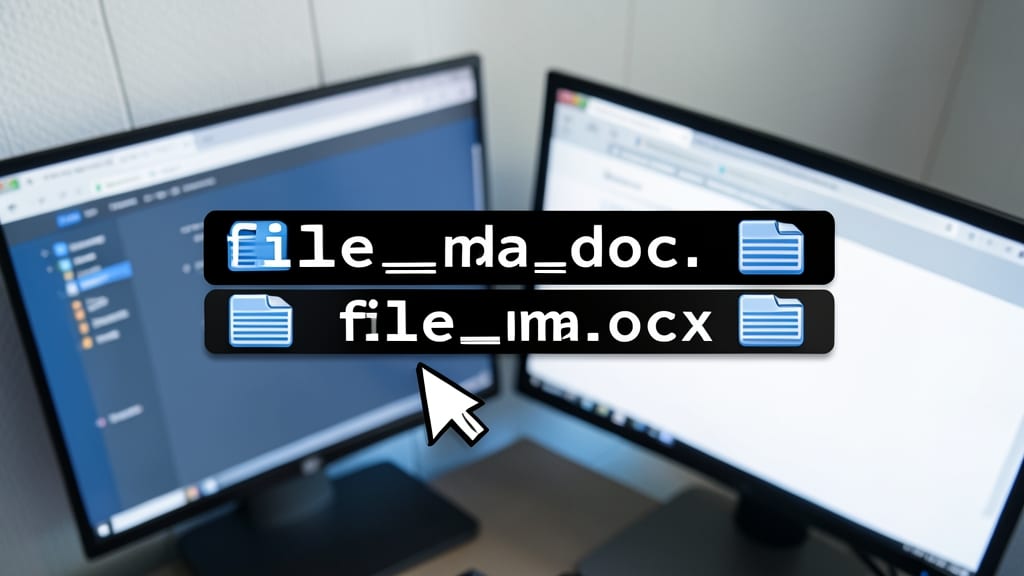
Stuck choosing between filename.docx and file-name.docx? The battle of underscores vs. hyphens isn’t just about aesthetics—it’s about Microsoft compatibility vs. web standards. Your choice could save you headaches when sharing files across platforms.
Underscores (filename.docx) play perfectly with Microsoft Office, Windows Explorer, and OneDrive desktop apps. They’re also easier to read in filenames with multiple words. Meanwhile, hyphens (file-name.docx) are the web’s preferred format—better for URLs, SEO, and cloud storage like OneDrive’s web interface. Test both: Open file_name.docx in Word vs. file-name.docx in a browser to see the difference.
If you’re heavily using Microsoft tools, stick with underscores. For web developers or teams sharing files online, hyphens win. Pro tip: Use all lowercase for consistency across systems. 💻
OneDrive Folder Structure Hierarchy
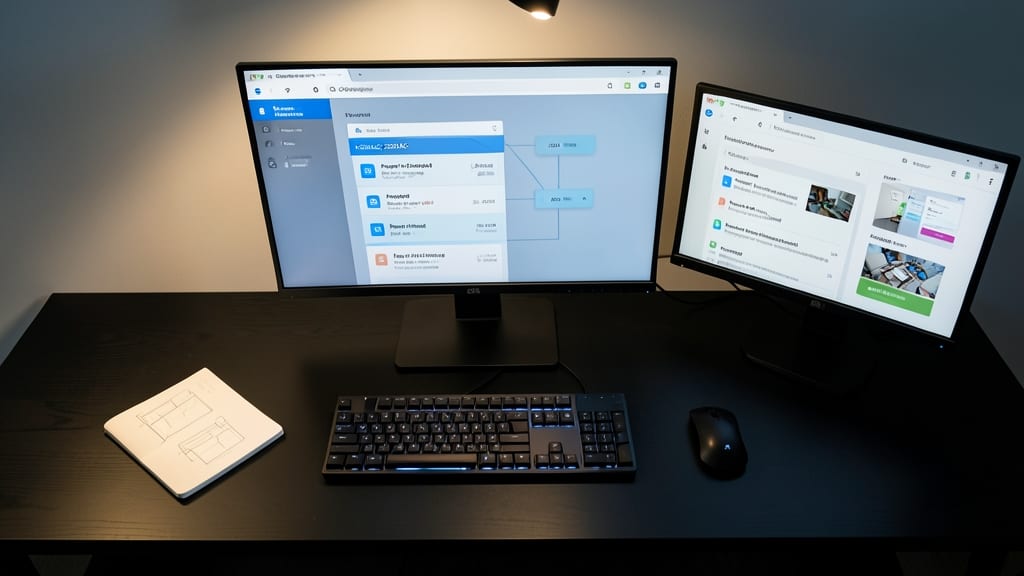
Tired of hunting through shared OneDrive libraries for the same file with different names? The folder hierarchy system turns OneDrive into a self-organizing powerhouse by combining smart folder paths with metadata.
Create a nested structure like Projects/2024/Q2/ClientABC where the folder path itself acts as metadata. This eliminates duplicates by forcing consistency—files like ClientABCContractFinal.docx naturally group with their project context. OneDrive’s search filters work seamlessly with this structure, and shared libraries stay clutter-free since everyone follows the same path rules.
Perfect for teams managing client projects or cross-department collaborations where files frequently get renamed or duplicated. This system works best when paired with department codes (from earlier items) for enterprise-wide consistency. ✨
Avoid Special Characters and Spaces
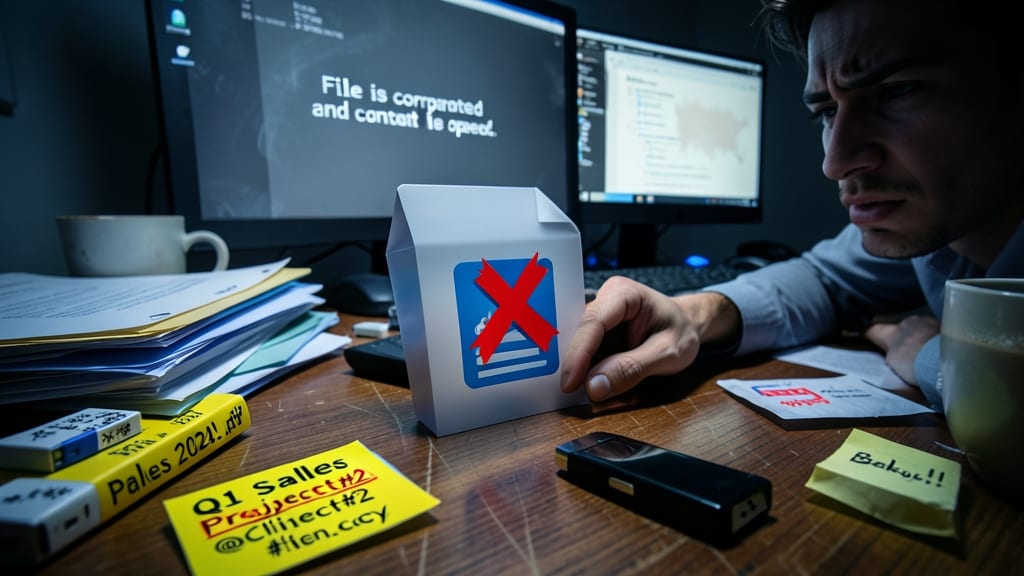
Frustrated when a file suddenly becomes unopenable after moving it between devices? The fix is simpler than you think: skip special characters and spaces entirely. Microsoft’s own documentation warns that symbols like !, @, or # (e.g., Q1 Sales 2024!.docx) can corrupt files or break compatibility in Windows, macOS, or Linux systems.
Stick to only letters (A-Z), numbers (0-9), underscores (), and hyphens (-)—this ensures seamless sharing across platforms. For example, Q1Sales2024.xlsx (underscore) or Q1-Sales-2024.xlsx (hyphen) will open flawlessly in every Microsoft app, while Q1 Sales 2024.docx might fail on older systems or mobile devices.
This rule is non-negotiable for IT teams, freelancers, or anyone collaborating across devices. A single misplaced character could derail a project—so why risk it? 💻