
PowerPoint
PowerPoint transitions can transform a dull presentation into an engaging experience. These seven carefully selected transition effects will help you create smooth slide flow, maintain professionalism, and captivate any audience—whether you're presenting to clients, students, or colleagues.
Fade Slide Transition for Elegant Professionalism
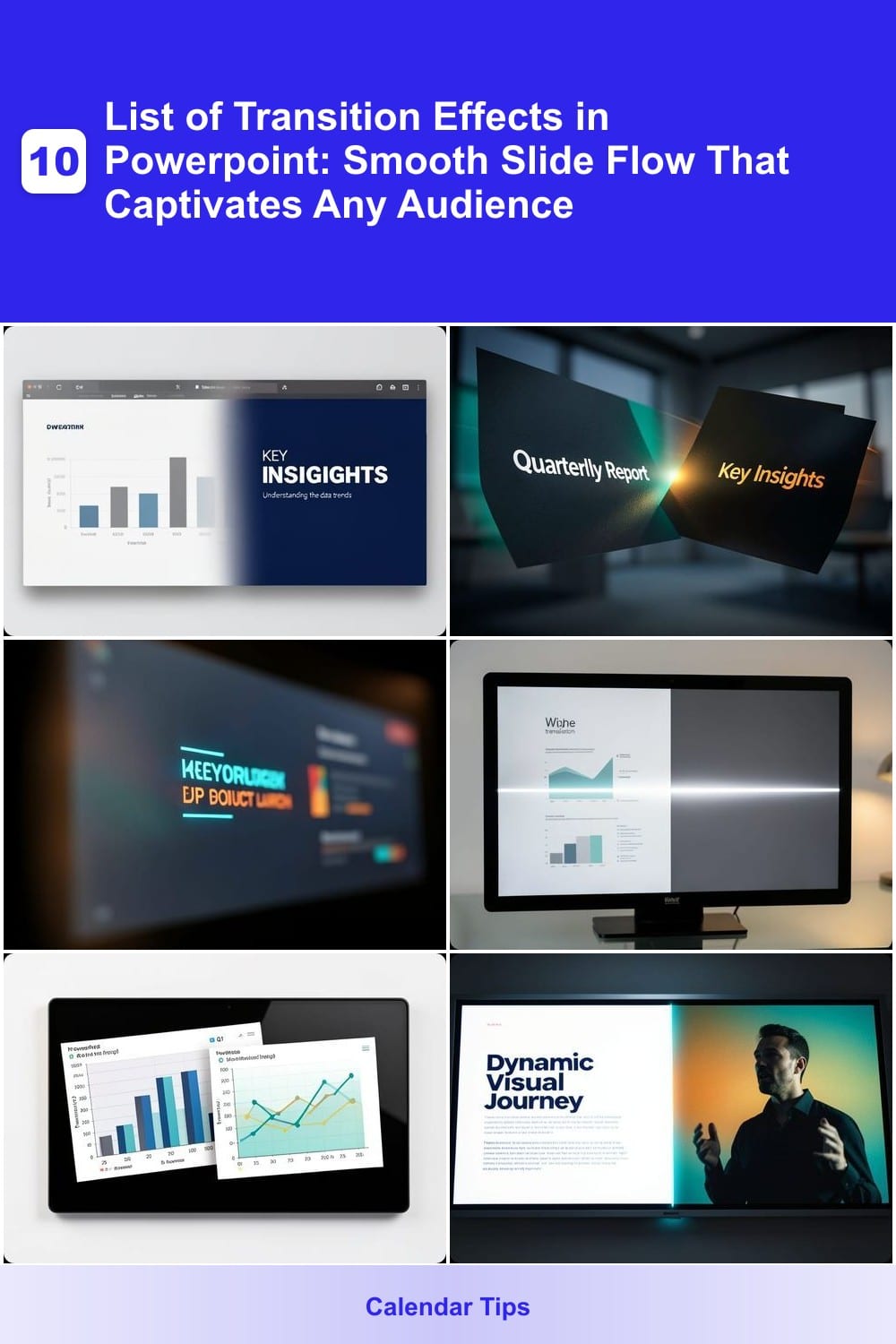
When your presentation demands polish without distraction, the Fade transition is the gold standard. Unlike flashy animations, it smoothly dissolves one slide into the next, ensuring your content—whether data, visuals, or text—remains the star of the show.
Available in all PowerPoint versions (from 2007 to 365), this transition offers zero visual clutter and pairs effortlessly with any color scheme or design theme. Adjust the speed (0.1s to 5s) to control pacing, or add a subtle sound effect (like a chime) for extra professionalism. The timeless appeal makes it ideal for boardrooms, academic lectures, or client pitches.
Perfect for executives, educators, and designers who prioritize clarity and sophistication over flash. It’s the go-to for presentations where the message matters more than the motion. ✨
Push Slide Transition for Dynamic Movement

When you need to guide your audience through a story or data sequence, the Push transition delivers a cinematic feel that feels intentional—not distracting. Unlike static fades, this effect slides one slide out while pushing the next into view, creating a natural flow that mirrors real-world progression.
Available in PowerPoint 2013 and later, this transition offers directional control (left, right, up, or down) and speed adjustments to match your pacing. Pair it with sound effects (like subtle whooshes) to reinforce the movement, or keep it silent for a sleek, modern look. The 0.5-second default timing works well for most presentations, but you can extend it for dramatic reveals.
Storytellers, educators, and data analysts will find this transition especially useful—it subtly signals "next steps" without jarring cuts. For sequential data (like timelines or step-by-step processes), it keeps the audience’s focus locked on your narrative. ✨
Zoom Slide Transition for High-Impact Reveals

Need to make a slide pop during your big reveal? The Zoom transition delivers a cinematic effect that draws the audience’s eye instantly—perfect for highlighting key metrics, product launches, or closing arguments in sales decks.
This transition smoothly zooms in from a blurred state, creating dramatic focus on your content. Adjust the speed (from slow to fast) and direction (in or out) to control the intensity, while adding a subtle sound effect (like a camera shutter) enhances the professional polish. Works seamlessly in PowerPoint 2016 and later, including the online version.
Sales teams, startup founders, and trainers will love this for high-stakes moments—just avoid overusing it, or it’ll lose its impact. ✨
Wipe Slide Transition for Clean Visual Breaks
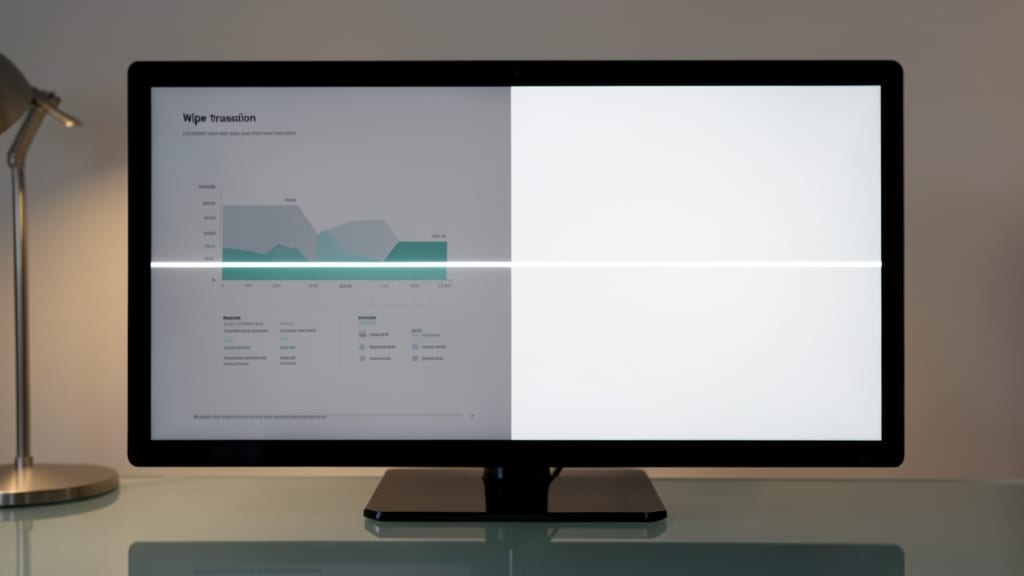
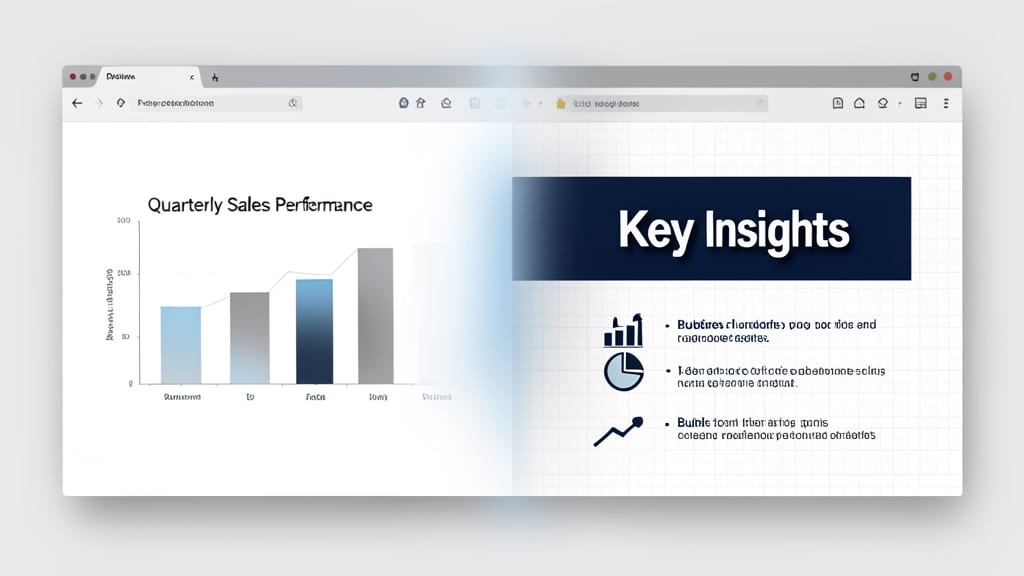
Tired of abrupt slide cuts that feel jarring? The Wipe transition offers a sleek, linear motion to signal section changes without overwhelming your audience. Unlike flashy effects, it delivers a clean, professional break—ideal for dividing topics in lengthy presentations or training modules.
Available in PowerPoint 2013 and later (including Online versions), this transition lets you choose horizontal, vertical, or diagonal wipes with adjustable speed. Pair it with zero sound for a distraction-free experience, or add subtle background music to enhance pacing. The minimalist motion ensures your content stays the focus, never the animation.
Perfect for educators, trainers, or corporate presenters who need to maintain flow while subtly guiding the audience through structured content. ⚡
Morph Slide Transition for Seamless Data Flow
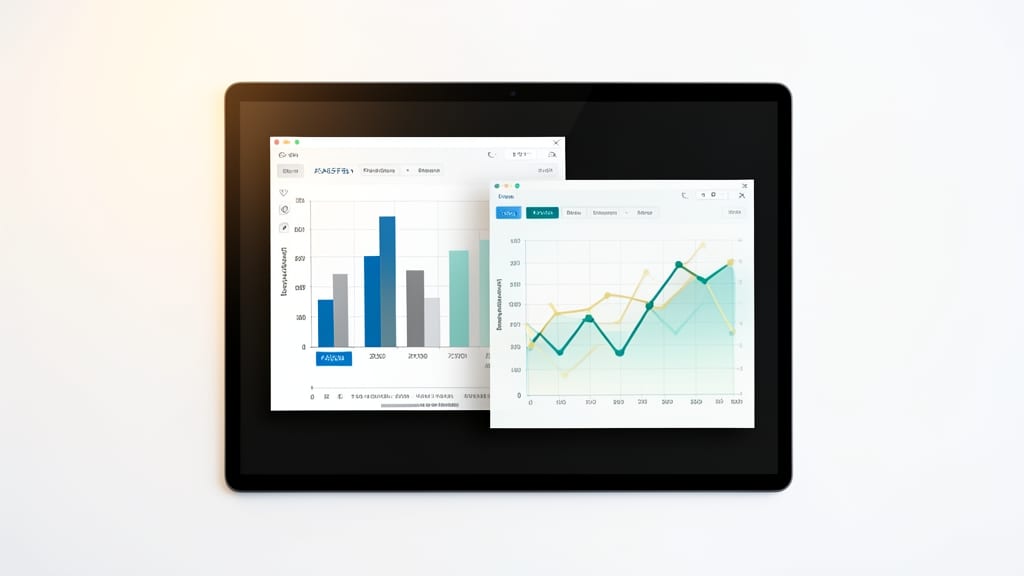
When your slides are packed with numbers, graphs, or complex data, the Morph transition becomes your secret weapon. Unlike other transitions that simply fade or push slides away, Morph intelligently blends one chart or table into another, preserving data integrity while keeping the audience focused on the insights—not the animation.
Available in PowerPoint 2016 and later (including the online version), this transition works best with shapes, charts, and objects that share similar layouts. You can adjust the transition speed to match your pacing, and the effect even respects object hierarchy—so a pie chart’s slices will morph smoothly into a new dataset without losing clarity. For analysts or finance teams, this is the only transition that makes data comparisons feel dynamic yet precise.
If you’re presenting quarterly reports, market trends, or scientific findings, Morph ensures your audience stays locked in on the numbers—not distracted by jarring cuts. It’s the only transition that turns dry data into a visually compelling narrative. ✨
Slide Split Transition for Creative Storytelling
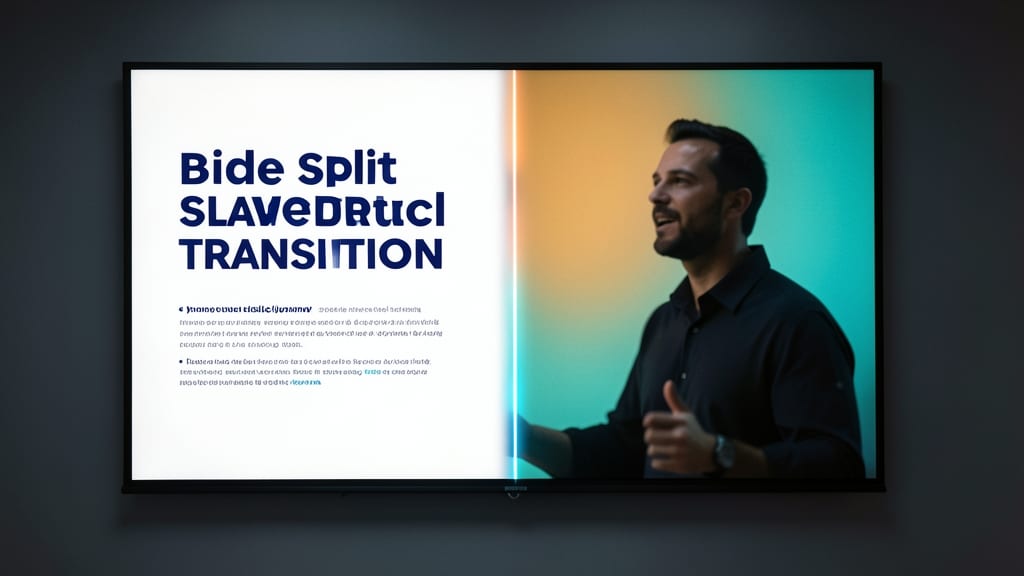
Need to keep your audience’s attention while telling a story? The Slide Split Transition turns your presentation into a dynamic visual journey by splitting the screen—either horizontally or vertically—to reveal new content. Unlike other transitions, this one doesn’t just fade or slide; it actively guides the viewer’s eye by creating a clear before-and-after effect, making it perfect for educational or motivational content.
Available in PowerPoint 2016 and later, this transition works best with two distinct sections (like a problem vs. solution or past vs. future). You can customize the split direction (left/right or top/bottom) and adjust the speed to control pacing. Pair it with contrasting colors or bold visuals to maximize impact—think of it as a cinematic reveal for your slides.
Educators, trainers, and motivational speakers will love this for its narrative flow, while creatives can use it to break up complex ideas into digestible chunks. Just avoid overusing it—save it for moments where you want to emphasize a shift in perspective. ✨
3D Slide Transition for Modern Visual Appeal
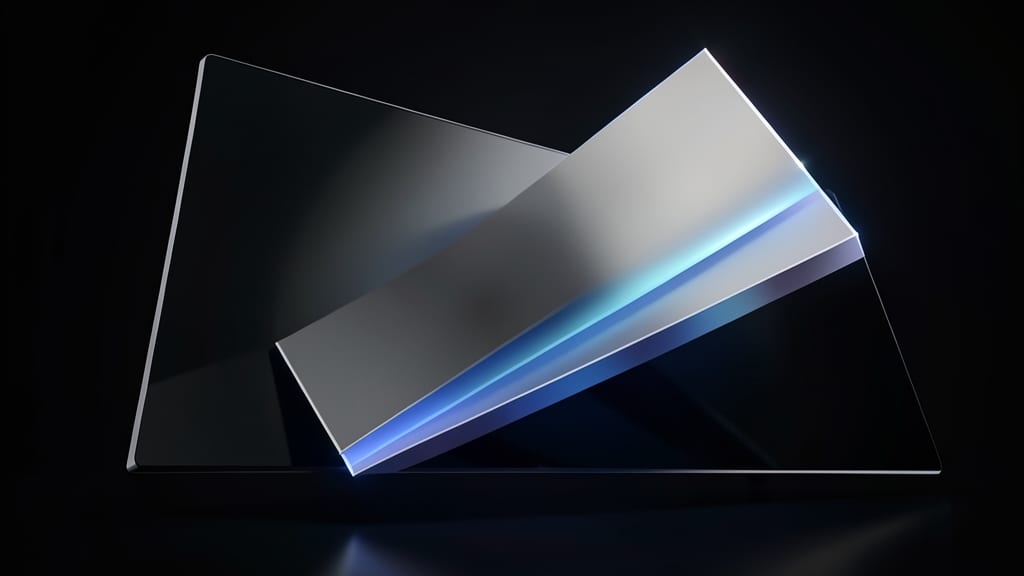
Want to give your tech or creative presentation a sleek, futuristic edge without sacrificing professionalism? The 3D Slide Transition delivers exactly that with its depth and dimensional effects, making it stand out in industries like design, software demos, or innovation pitches.
Available in PowerPoint 2016 and later, this transition uses rotational and perspective-based animations to create a cube-like or layered effect between slides. You can customize the rotation speed and axis direction (horizontal, vertical, or diagonal) to match your brand’s aesthetic. Unlike flashier effects, it avoids overwhelming the audience—just enough visual interest to keep them engaged.
Ideal for tech startups, UI/UX presentations, or artistic portfolios, this transition works best when used sparingly—perhaps for key sections or product reveal slides. Just avoid pairing it with complex animations to keep your presentation running smoothly. ✨