
Software
Microsoft is integrating reminders directly into Microsoft Teams, making task management seamless within your workflow. Discover these seven pro tips to maximize the new feature and boost your productivity without leaving the app.
Setting Personal Task Reminders in Teams
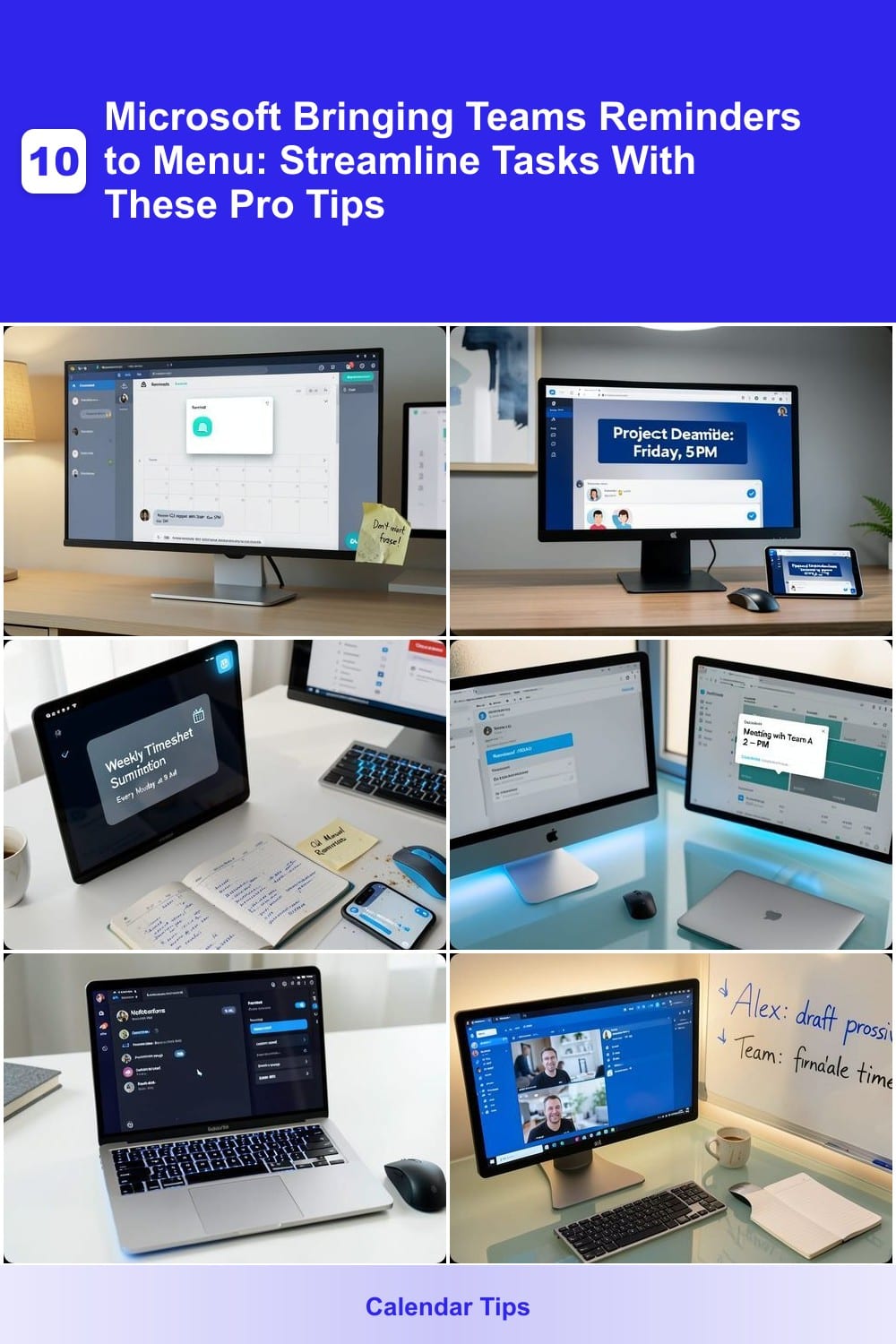
Forget juggling sticky notes or external apps—Microsoft Teams now lets you create personal task reminders directly within the platform, tied to your calendar or specific chats. This feature ensures your to-dos stay visible without cluttering your inbox or requiring extra logins.
To set one, open a chat or channel, click the three-dot menu (⋯), and select "Add a reminder." Add a due date, details, and even attach files for context. Teams will sync it with your calendar and notify you via desktop alerts, email, or mobile push notifications. You can also link reminders to specific tasks in chats, keeping everything organized in one place.
Perfect for freelancers, students, or professionals who want a streamlined way to track personal deadlines without leaving Teams. No more context-switching—just focus on what matters. 💡
Team-Wide Announcement Reminders
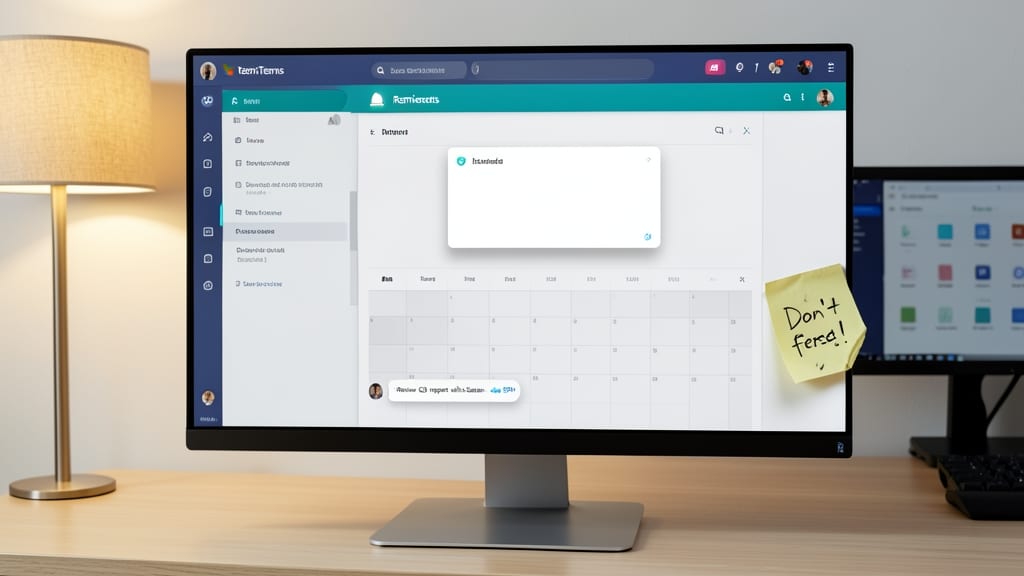
Need to keep your entire team aligned without sending endless emails? Microsoft Teams’ team-wide announcement reminders let you notify everyone in a channel or group about deadlines, meetings, or updates—all in one click. No more chasing down missed messages or forgotten tasks.
To create one, open a team or channel chat, click the three-dot menu (⋯), and select "Add a reminder." Assign it to the group, set a due date and time, and add details like meeting links or deadlines. Teams will automatically notify all members via desktop alerts, email, or mobile push notifications, ensuring no one slips through the cracks. You can even @mention specific team members for extra accountability.
This is a lifesaver for project managers, HR teams, or anyone coordinating group tasks—whether it’s a quarterly review, a product launch, or a critical deadline. Keep everyone on the same page without the chaos. 💪
Recurring Reminders for Regular Tasks
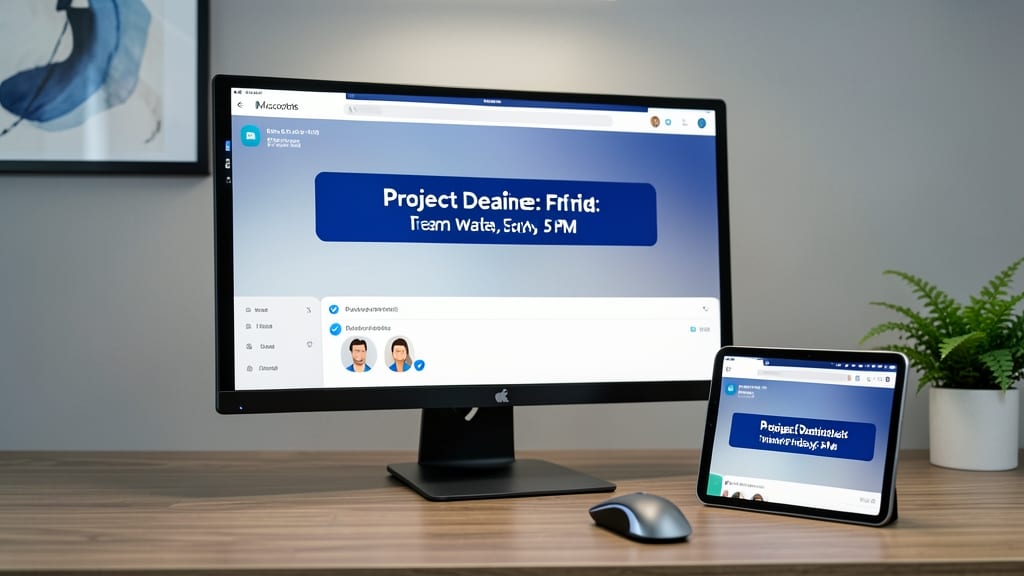
Tired of manually scheduling the same tasks every week? Microsoft Teams’ recurring reminders let you automate repetitive workflows—like submitting timesheets, reviewing project updates, or checking in with clients—so you spend less time managing and more time executing.
To set one, simply create a reminder in Teams, then toggle the "Recurring" option in the settings. Choose from daily, weekly, or monthly intervals, and specify end dates if needed. The system handles the rest, ensuring no task slips through the cracks—even if you’re swamped. You can also customize notifications to appear as desktop alerts, email pings, or mobile push notifications for maximum visibility.
Perfect for freelancers juggling multiple clients, managers overseeing regular check-ins, or anyone drowning in repetitive admin work. Set it once, and let Teams handle the rest—freeing up mental space for what truly matters. ✨
Integrating Reminders with Outlook Calendar
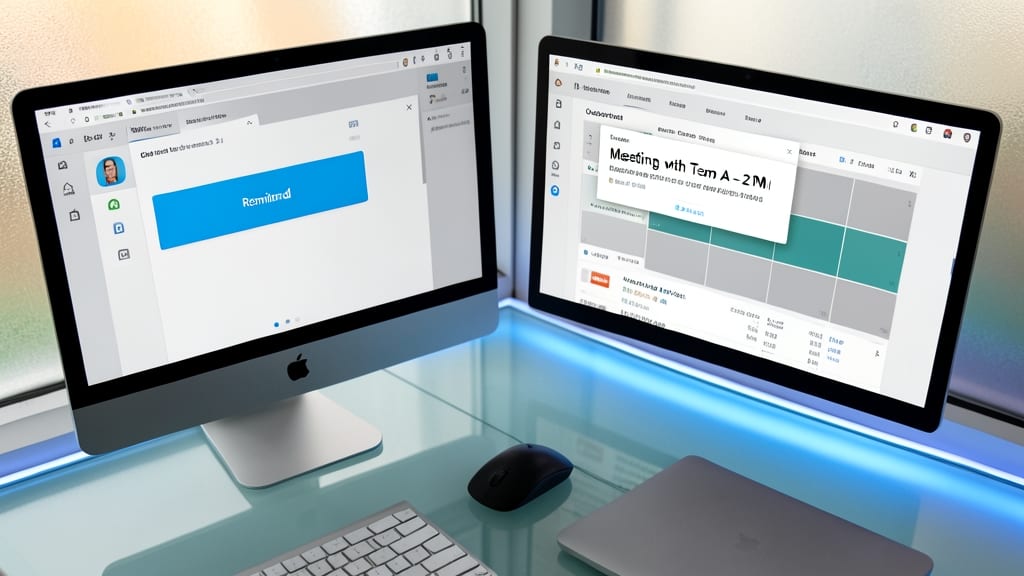
Ever double-booked a meeting because your Teams reminder and Outlook calendar weren’t on the same page? Microsoft’s seamless integration between Teams reminders and Outlook Calendar eliminates that frustration by syncing tasks, deadlines, and events in real time.
To enable this, start by creating a reminder in Teams (via the three-dot menu in chat or your task list). When prompted, select "Add to Outlook Calendar"—this instantly pushes the reminder into your Outlook events with the same due date and priority. The sync works both ways: edits in Outlook update Teams, and vice versa. For shared calendars, this ensures team-wide visibility without manual updates.
This feature is a game-changer for professionals juggling multiple tools—project managers, sales teams, or anyone who relies on Outlook for scheduling. No more juggling apps or missing critical deadlines! ✨
Customizing Reminder Notifications
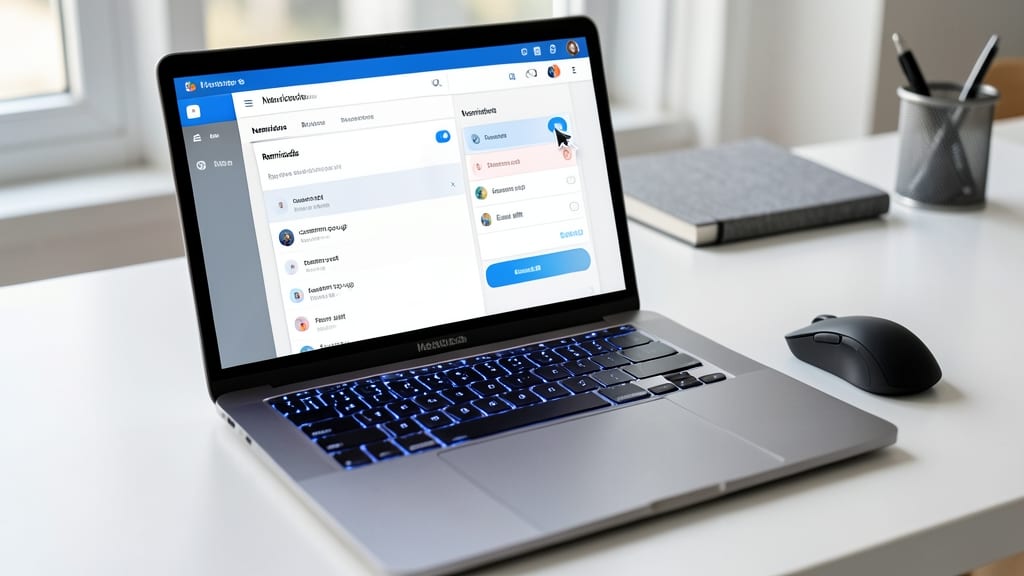
Tired of generic reminder alerts that blend into the noise? Microsoft Teams now lets you tailor notifications to match your workflow—whether that’s a custom sound, a persistent pop-up, or even an email alert.
In the Teams settings menu, navigate to Notifications and select Reminders to choose from desktop alerts, email notifications, or push alerts for mobile. You can even assign priority levels to ensure high-stakes tasks stand out. For extra focus, pair critical reminders with a custom notification tone (like a classic Windows chime or a subtle ping) to avoid distractions from less urgent tasks.
This level of customization is perfect for freelancers juggling multiple deadlines or team leads who need to prioritize alerts based on project urgency. No more missed deadlines—just the right alert at the right time. ✨
Using Reminders for Meeting Follow-Ups
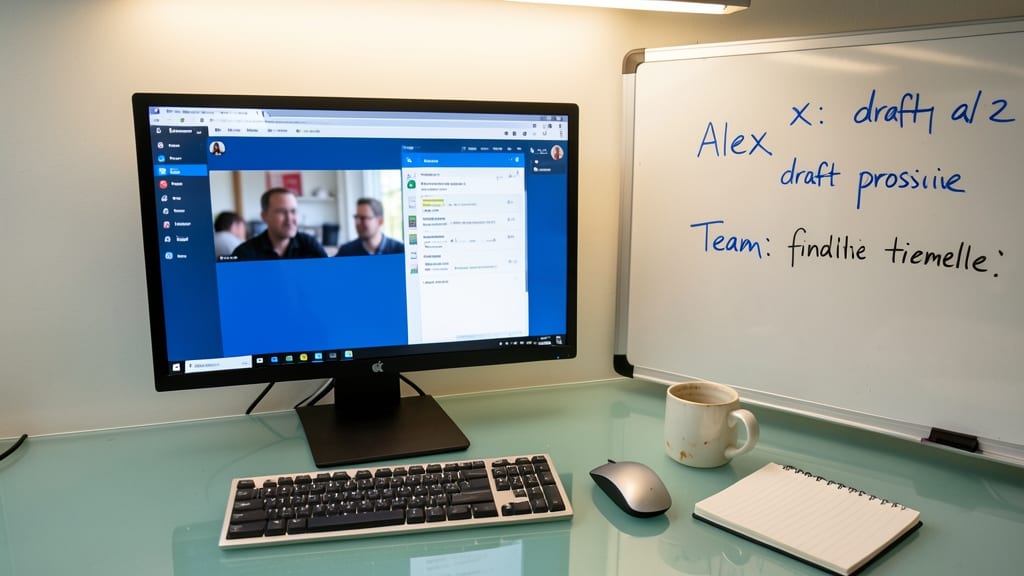
After a brainstorming session or client call, the last thing you want is to forget who’s responsible for which action item. Microsoft Teams’ reminders feature lets you convert meeting notes into automated follow-ups—no sticky notes or spreadsheets required.
During a meeting, simply add a reminder directly in the chat or meeting recap with details like deadlines, owners, and status updates. Teams will then notify assigned team members when it’s time to check progress. You can even link reminders to specific files or channels for context. The @mention functionality ensures accountability by tagging the right person, while the progress tracker keeps everyone aligned.
This is a game-changer for project managers, sales teams, or anyone coordinating cross-functional work. No more chasing down updates—just set it and let Teams handle the follow-ups. ✨
Troubleshooting Common Reminder Issues
Even with reminders in Teams, you might still face missed notifications or sync glitches that disrupt your workflow. These issues often stem from simple misconfigurations or app conflicts, but quick fixes can restore smooth operation.
Start by checking your Teams notification settings—ensure reminders are enabled under Settings > Notifications. If reminders vanish, try clearing the Teams cache (Windows: %appdata%\Microsoft\Teams, Mac: ~/Library/Application Support/Microsoft Teams) or updating the app. For sync errors, verify your Outlook/Teams integration is active in Settings > Calendar and that your account permissions are up to date. Pro tip: Disable third-party extensions that might interfere.
Busy professionals and IT admins will appreciate these fixes the most, as they minimize downtime and keep collaboration tools running like clockwork. 💪