
Microsoft Office
Microsoft Teams is a powerhouse for collaboration—but most users only scratch the surface. These 10 underutilized tips and tricks for 2023 will transform how you work, from automating repetitive tasks to customizing your workspace for maximum efficiency.
Use Quick Actions for Instant Productivity
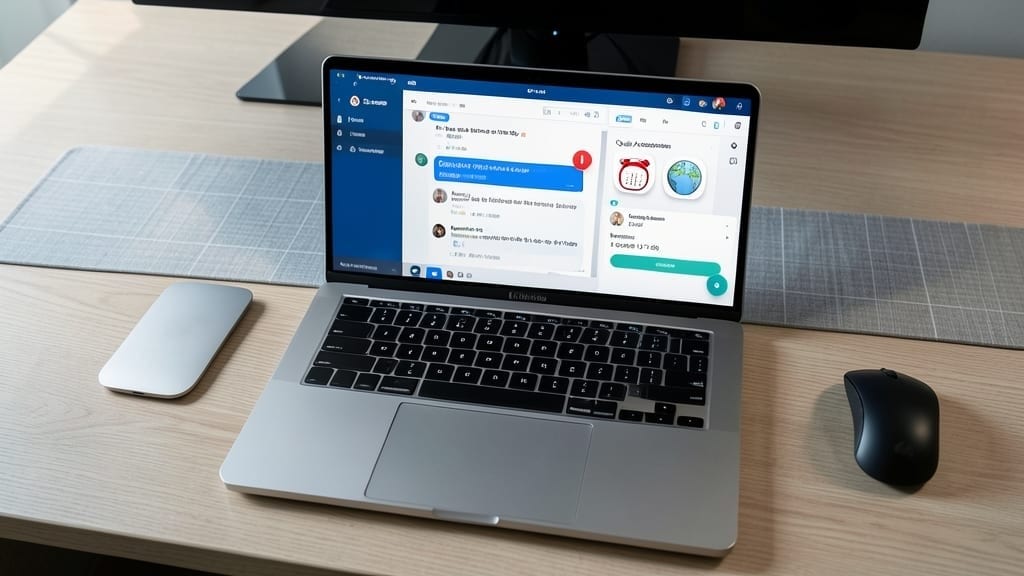
Tired of constantly switching between apps to set reminders, start timers, or translate messages? Microsoft Teams’ Quick Actions feature lets you do it all—right inside chats—without ever leaving the platform.
With just a few clicks, you can add a reminder ("Remind me to follow up on this by Friday"), start a timer ("Start a 25-minute Pomodoro"), or translate text into 100+ languages—all while keeping the conversation flowing. The feature even integrates with Microsoft To Do and OneNote for seamless task management. No more tab-hopping or app-switching!
This trick is a game-changer for remote teams, freelancers, or busy professionals juggling multiple tasks. Try it today and reclaim hours of productivity every week. ⚡
Customize Your Status with Emoji Reactions
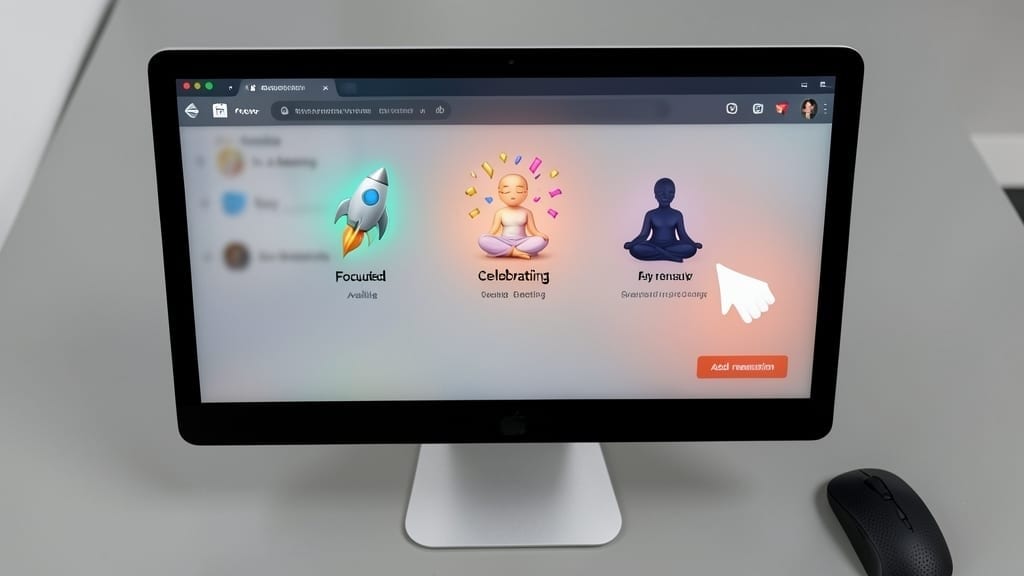
Tired of vague status updates like "Available" or "In a Meeting" that leave coworkers guessing? Microsoft Teams now lets you swap text statuses for emoji reactions—like 🚀 for "Focused," 🎉 for "Celebrating," or 🧘 for "Deep Work"—to instantly convey your mood or priority without typing a word.
To enable this, click your profile picture in the top-right corner, then select "Status" and choose "Add emoji." You’ll see a full library of options, including custom reactions for specific workflows (e.g., 🛠️ for "Debugging" or 📚 for "Learning"). Teams even syncs these reactions across devices, so your status updates automatically on your phone or tablet.
This trick is a game-changer for remote teams—whether you’re signaling a brainstorming session (💡) or a quick break (☕). Try it next time you’d normally type "BRB" and watch your coworkers respond faster. ✨
Enable Focus Mode for Deep Work
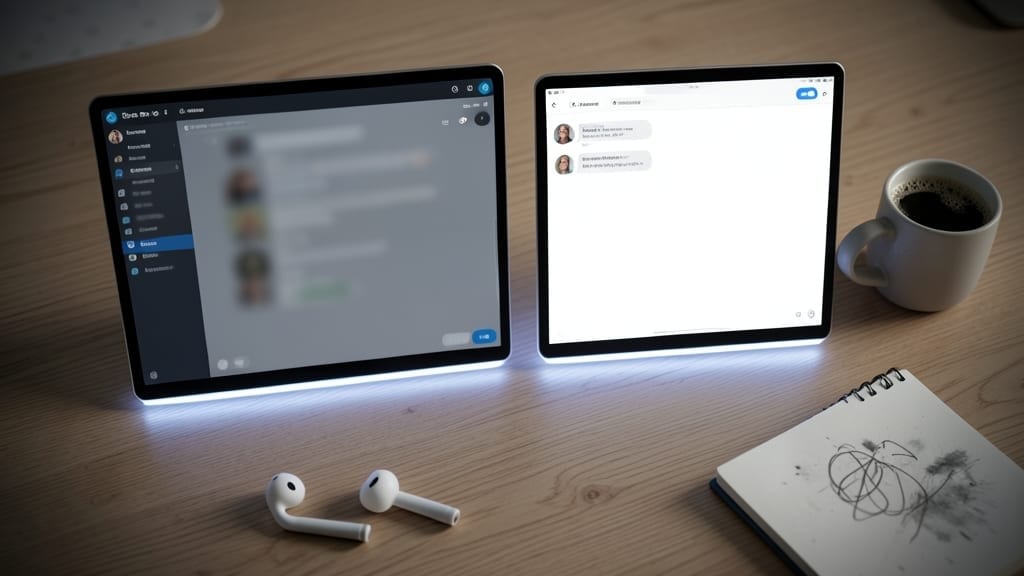
Struggling to focus during back-to-back meetings or creative brainstorming sessions? Microsoft Teams’ Focus Mode is your secret weapon—it silences all notifications and dims non-essential channels to create a distraction-free zone.
To activate it, click your profile picture in the top-right corner, then select Focus Mode. Choose which channels to mute (or leave all muted for maximum concentration) and set a timer if needed. The interface automatically blurs background tabs while keeping your active chat sharp, so you stay locked in on the task at hand. Perfect for writers, developers, or anyone needing uninterrupted time.
Ideal for deep work sessions or high-stakes meetings, Focus Mode ensures you’re not pulled away by Slack pings or email alerts. Give it a try during your next intense project—your productivity will thank you. ✨
Create Polls Directly in Team Chats
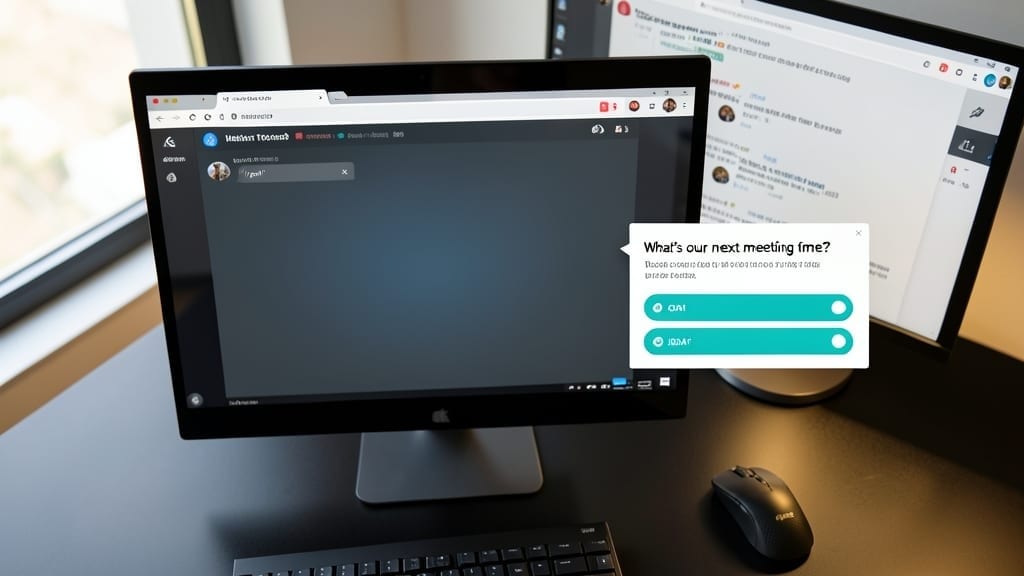
Tired of endless email threads or last-minute meeting debates over simple decisions? Microsoft Teams’ built-in poll feature lets you create and embed polls directly in chats—no extra tools required.
To start, simply type /poll in any chat, then add your question and options (e.g., "What’s our next meeting time?"). You can customize vote visibility (anonymous or public) and even set deadlines. The feature supports up to 10 options and integrates seamlessly with Teams’ existing chat workflow—perfect for brainstorming sessions, quick votes, or scheduling group lunches.
This trick is a game-changer for teams managing projects, events, or even casual office decisions. Try it next time you need a fast consensus instead of a drawn-out discussion! ✨
Use 'Shift + Click' to Open Links in Background
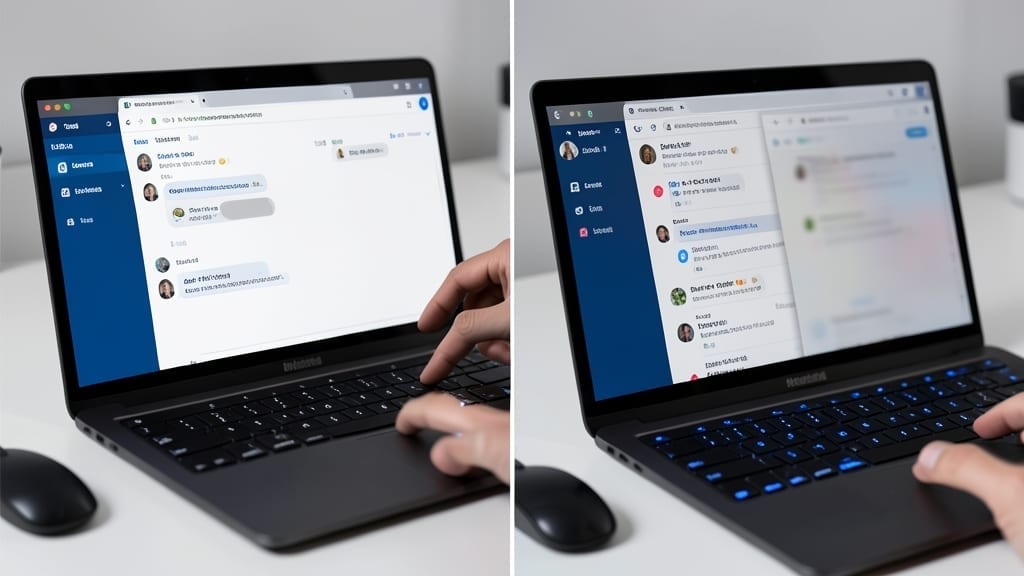
Ever wasted time switching between Teams and external tabs, losing your place in the conversation? The Shift + Click trick is your secret weapon for seamless multitasking—no more context-switching headaches.
Simply hold Shift while clicking any link in Teams to open it in a background tab, keeping your original chat or meeting active. This works for web links, documents, and even external apps like Google Drive or Notion. It’s especially useful when reviewing shared files mid-call or jumping between research and discussions without closing anything.
Perfect for project managers, developers, or anyone juggling multiple tools—this tiny tweak saves seconds per click that add up over hours. Give it a try next time you’re deep in a workflow! ✨
Pin Important Channels to Top of List
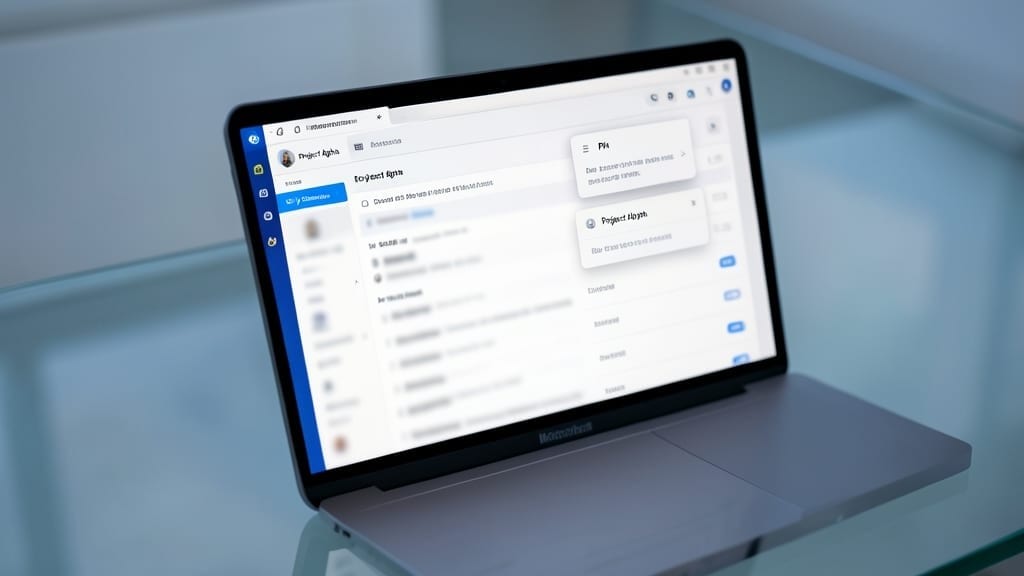
Tired of scrolling through endless channels to find the one you need? Pinning your most-used channels in Microsoft Teams is a game-changer for busy professionals.
Simply hover over any channel in your list, click the three-dot menu, and select "Pin". The channel jumps to the top of your sidebar, keeping critical conversations like "Project X" or "Client Updates" just a click away. No more hunting through long lists—just instant access to what matters most.
This trick is perfect for project managers, client-facing teams, or anyone juggling multiple priorities. Spend less time searching and more time collaborating! ✨
Schedule Meetings with One-Click Templates
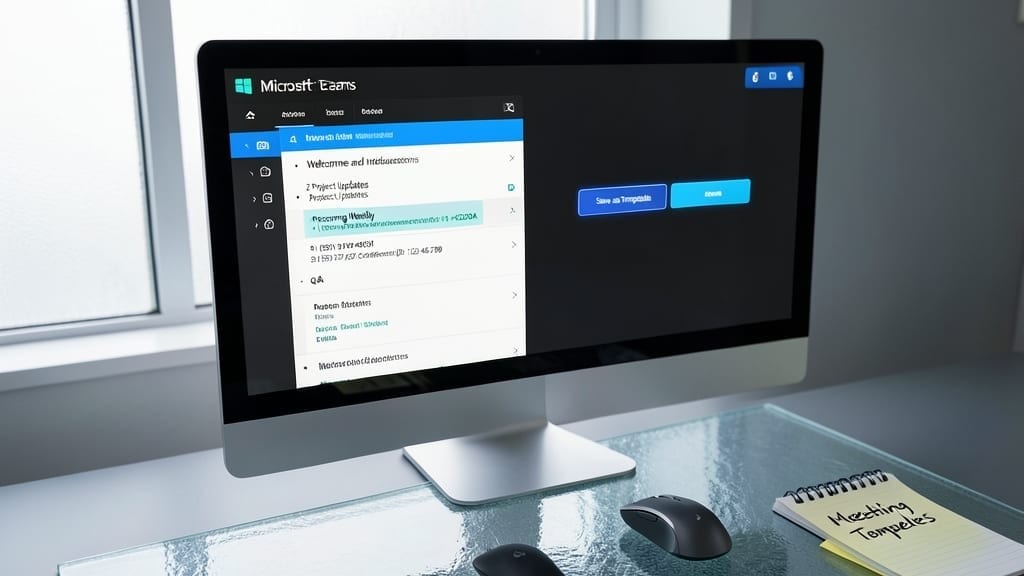
Tired of recreating the same meeting details every week? One-click templates in Microsoft Teams let you save entire meeting setups—including agendas, dial-in links, and time slots—so you can reuse them in seconds.
Start by creating a new meeting, then click "Save as template" in the calendar view. Name it something like "Weekly Standup" or "Client Review" and include all your standard details. Next time, just search for your template in the "Templates" tab—it’ll auto-fill everything, cutting setup time by 10+ minutes per meeting. You can even share templates across your team for consistency.
This trick is a game-changer for managers, project leads, or anyone hosting recurring meetings. Say goodbye to forgotten dial-in codes or last-minute agenda scrambles! ✨
Enable 'Together Mode' for Immersive Meetings

Tired of the endless grid of faces and Zoom fatigue? Together Mode in Microsoft Teams transforms your virtual meetings into a shared space—like a coffee shop or boardroom—where participants appear side by side as if collaborating in person.
To enable it, simply join a meeting, click the three dots in the meeting controls, and select Together Mode. Choose from pre-set scenes (e.g., Coffee Shop, Boardroom, or Classroom) or customize the layout. The feature works seamlessly with up to 49 participants and is perfect for brainstorming sessions or client presentations where engagement matters.
Remote teams, educators, and sales professionals will love how this reduces screen fatigue and fosters a more natural, face-to-face connection. Give it a try next time you host! ✨
Use 'Find Time' to Coordinate Schedules
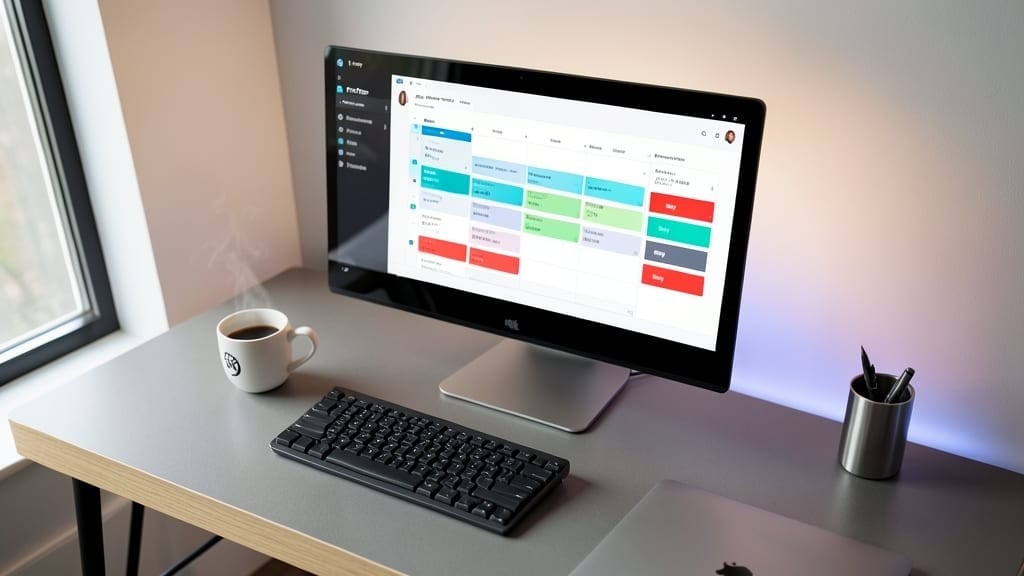
Tired of endless email threads just to schedule a meeting? Microsoft Teams' Find Time tool solves this by instantly visualizing everyone’s availability—no more guessing or back-and-forth messages. Simply input attendees’ calendars, and the tool highlights the best time slots where everyone is free.
You can add up to 25 people at once, set duration limits, and even propose multiple time options. The tool integrates seamlessly with Outlook calendars, ensuring real-time accuracy. Once you pick a slot, it auto-generates the meeting invite with all details pre-filled—saving you 10+ minutes per meeting.
This is a game-changer for managers, project leads, and cross-team collaborators who juggle busy schedules. Try it next time you’re coordinating a group meeting—your inbox will thank you! ✨
Automate Repetitive Tasks with Power Automate
Tired of manually copying meeting notes or chasing down decisions after calls? Power Automate bridges the gap between Teams and your favorite apps—like OneNote, SharePoint, or Slack—to handle the busywork for you. With just a few clicks, you can set up flows that auto-save transcripts, log action items, or send alerts, freeing up 30%+ of your post-meeting time.
The best part? No coding required. Use pre-built Teams templates (like "Save meeting notes to OneNote") or customize workflows with triggers such as "When a new channel message is posted." For example, auto-log client feedback in SharePoint or notify your team in Slack when a decision is made—all without lifting a finger. Microsoft’s integration ensures seamless data flow between tools.
Perfect for project managers, admins, or anyone drowning in follow-ups, this trick turns Teams into a fully automated command center. 💻