
Software
Managing SharePoint document library permissions can be tricky—balance security with team collaboration. These 10 best practices help you control access efficiently while keeping workflows smooth and data protected.
Use SharePoint Permission Levels for Granular Control

Struggling to balance security and collaboration in SharePoint? The built-in permission levels (Edit, Contribute, Read) are your secret weapon—customizable to fit unique workflows without over-permissioning. Instead of defaulting to "Full Control," tweak these roles to match exact job functions (e.g., "Approvers" with "Edit" but no "Delete").
Start in Site Settings > Site Permissions, then click "Permission Levels" to duplicate and modify roles. For example, create a "Review Only" level with "Read" + "View Versions" but no editing rights. This ensures contractors or auditors access only what they need—no accidental edits or data leaks. Pair this with audit logs (covered later) to track who uses which permissions.
This approach shines for cross-functional teams (like marketing + legal) where roles overlap but access shouldn’t. By aligning permissions with actual tasks, you eliminate guesswork and reduce IT support tickets. 💡
Apply Least Privilege Principle to Document Libraries

Over-permissioning is like leaving your front door unlocked when you only need to open the back door—it invites unnecessary risks. The least privilege principle in SharePoint means giving users only the access they absolutely need to do their jobs, nothing more. This simple shift slashes the risk of accidental data leaks or unauthorized edits while keeping workflows running smoothly.
Start by mapping out each role’s requirements: Does a marketing assistant need to edit client proposals? Probably not—read-only access suffices. Should a finance manager have full control over payroll documents? Only if absolutely necessary. Use SharePoint’s permission levels (like "Contribute" vs. "Edit") to fine-tune access, and break inheritance on sensitive folders to apply stricter rules. Tools like Microsoft’s Access Reviews can even flag over-permissive roles automatically.
This approach is a game-changer for compliance-heavy teams (like legal or HR) or enterprise environments where data sensitivity varies by department. By default, assume "deny all" unless explicitly granted—your data (and sanity) will thank you. 💪
Leverage SharePoint Groups for Role-Based Access

Tired of manually assigning permissions to every team member? SharePoint Groups let you apply role-based access in bulk—just create a group (like "Project Alpha Editors") and assign permissions once. This ensures every new hire or contractor gets the right access instantly, without chasing down IT for individual setups.
Start by navigating to Site Settings > Site Permissions, then click Create Group. Name it clearly (e.g., "Finance Approvers") and assign a permission level (e.g., "Edit" or "Read"). SharePoint then automatically applies these rules to all group members—no more permission sprawl. You can even nest groups (e.g., "Marketing > Campaign Managers") for granularity without complexity.
This approach is perfect for large teams or departments where roles change frequently. Groups also sync across libraries, so your "HR Team" gets consistent access to all relevant folders—no more permission conflicts. ✨
Enable Versioning and Check-Out Requirements

Tired of overwriting edits or losing track of document changes in chaotic team projects? SharePoint’s versioning and check-out requirements act as a digital traffic cop, ensuring only one editor works on a file at a time while preserving every revision.
Enable versioning to retain up to 50,000 versions (configurable) of each document, while require check-out forces users to "reserve" a file before editing—preventing conflicts. This is especially useful for legal contracts, financial reports, or design files where accuracy matters. You can even set major/minor version limits to balance storage with history depth.
Perfect for teams juggling collaborative drafts (like marketing campaigns or engineering specs) where multiple contributors need oversight without stepping on each other’s toes. ✨
Restrict Access to Sensitive Folders with Unique Permissions

Not every document needs to be visible to your entire team—especially when dealing with confidential contracts, employee records, or legal filings. SharePoint’s folder-level permissions let you create a digital vault for sensitive content, ensuring only the right eyes see what they need to.
Start by breaking permission inheritance on the target folder, then assign custom roles like “HR Confidential” or “Legal Review”. You can even restrict access to specific users while keeping the parent library open to broader teams. For extra security, combine this with versioning (from the previous item) to track who accessed or modified restricted files. This approach keeps your general documents collaborative while locking down the sensitive ones.
This method is perfect for HR, Legal, and Finance teams managing proprietary data. It’s also ideal for compliance-heavy industries like healthcare or finance, where strict access controls are non-negotiable. ✨
Audit Permissions Regularly with SharePoint Reports

SharePoint’s audit logs act like a security time machine—tracking every permission change, access attempt, and modification in your document libraries. Without this visibility, you’d never know if a former employee still has access or if a sensitive folder was accidentally opened to the wrong team.
Navigate to Site Settings > Site Collection Administration > Site Collection Audit Settings to enable tracking for permission changes, document access, and external sharing. The built-in Access Requests report reveals who requested permissions and whether they were granted—helping you spot patterns like over-permissive roles or unused accounts. For compliance-heavy industries (finance, healthcare), these logs double as an automated audit trail for regulators.
This is your go-to tool for quarterly permission reviews—especially after mergers, layoffs, or role changes. Set up automated alerts for suspicious activity (e.g., bulk permission grants) and pair reports with your least-privilege strategy for a battle-tested setup. ⚡
Use External Sharing Links with Expiration Dates

When vendors or clients need access to your documents but shouldn’t have permanent permissions, time-limited sharing links solve the problem elegantly. Instead of adding external users to your SharePoint tenant—risking long-term access—you can generate a link that expires automatically after a set period, like 7 or 30 days.
To create one, simply navigate to your document library, select the file, and click ‘Share’. Choose ‘Anyone with the link’, then set the expiration date in the dropdown menu. You can even restrict editing rights to ‘View-only’ for sensitive files. This method keeps your internal permissions clean while ensuring external collaborators only get the access they need—when they need it.
This approach is perfect for contractors, freelancers, or clients who need temporary access to proposals, invoices, or project files. It’s also a great way to share large files without clogging up email inboxes. ✨
Implement Retention Policies for Automatic Access Control
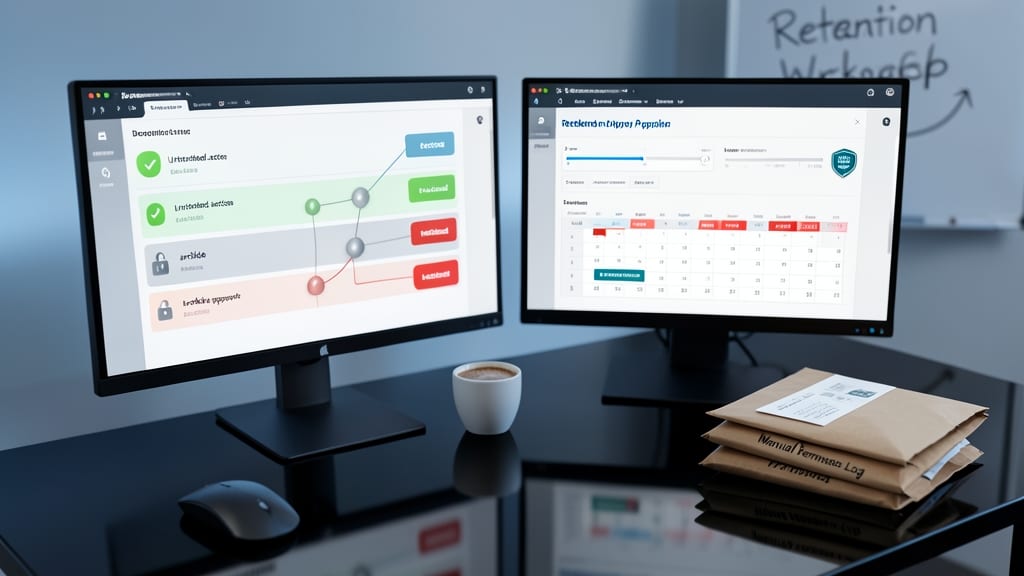
Tired of manually adjusting permissions every time a document reaches a certain age? Retention policies in SharePoint automate access control based on rules—like archiving files after 2 years or locking them after approval. This cuts administrative overhead while ensuring compliance with records management policies.
Set up policies to auto-apply permissions (e.g., "Read-only after 1 year") or trigger workflows like moving files to an archive library. SharePoint’s built-in retention labels support legal holds, disposal, or even encryption—no third-party tools needed. Combine this with versioning to keep old drafts secure while keeping active docs editable.
Ideal for legal teams, HR departments, or compliance-heavy industries, retention policies turn governance from a manual chore into a set-and-forget system. ⚡
Train Teams on Permission Best Practices

Formal permission requests might sound bureaucratic, but they’re your first line of defense against shadow IT—those rogue spreadsheets and unauthorized file shares that pop up when teams take matters into their own hands. The fix? A simple but powerful training program that turns "just share it with me" into a structured workflow.
Start with a SharePoint permission request form (available as a custom list or Power App) that requires teams to justify access needs. Add a 30-second video tutorial showing how to submit requests via the SharePoint interface, and include a cheat sheet of common permission levels (e.g., "Edit" vs. "Contribute"). For extra accountability, integrate approval workflows that notify managers when requests exceed standard access tiers.
This approach works best for mid-sized teams where collaboration tools like Teams or Slack might tempt users to bypass formal channels. By making the process faster than ad-hoc sharing (e.g., pre-filled forms for common roles), you’ll reduce frustration while keeping data secure. ✨
Test Permissions with Break-Glass Accounts

What if your SharePoint permissions suddenly lock out critical teams during a high-stakes project? A break-glass account acts as your emergency override—pre-configured admin credentials that bypass standard restrictions when normal access fails.
Set up a dedicated account with full control permissions but keep it inactive until needed. Store the credentials in a secure, offline vault (like a password manager) and document the process for IT teams. This ensures you can restore access during data breaches, accidental permission revokes, or system outages without scrambling for solutions. Microsoft’s SharePoint Admin Center lets you create and manage these accounts with just a few clicks.
This strategy is ideal for IT admins, compliance officers, and MSPs managing enterprise SharePoint environments. It’s your safety net for when permissions become the bottleneck. ⚡