
Microsoft Office

Struggling to keep up with Microsoft 365’s full potential? These 10 efficiency best practices will help your team automate workflows, reduce repetitive tasks, and collaborate smarter—saving hours every week.
Mastering Quick Access Toolbar Customization
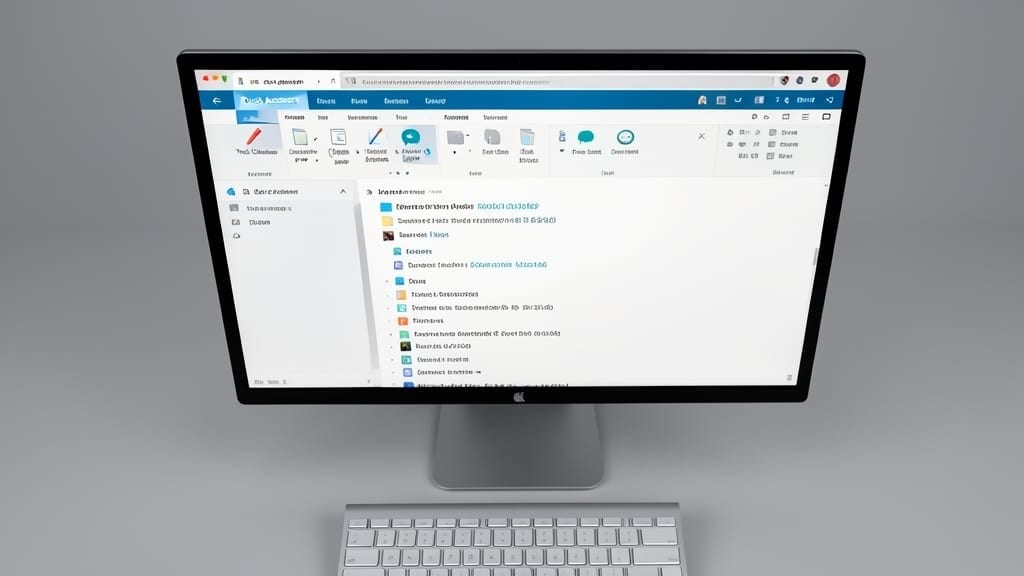
Tired of hunting through menus every time you need to save a document or undo a change? The Quick Access Toolbar in Microsoft 365 lets you pin your most-used commands—like Track Changes, Font Size, or Comment—right at your fingertips, slashing navigation time by up to 40%. No more digging through the Ribbon or remembering keyboard shortcuts.
Start by clicking the dropdown arrow on the toolbar and selecting "More Commands" to customize. You can add frequent actions (e.g., Insert Table, Share), macros, or even quick access to Power Query in Excel. The toolbar syncs across devices, so your setup follows you whether you’re in Word, Excel, or PowerPoint. Pro tip: Use the "Show Below the Ribbon" option to keep it visible without cluttering your workspace.
This is a game-changer for legal teams (track changes), marketing pros (quick formatting), and anyone drowning in repetitive tasks. Spend less time clicking, more time creating. ⚡
Automating Email Responses with Outlook Quick Steps
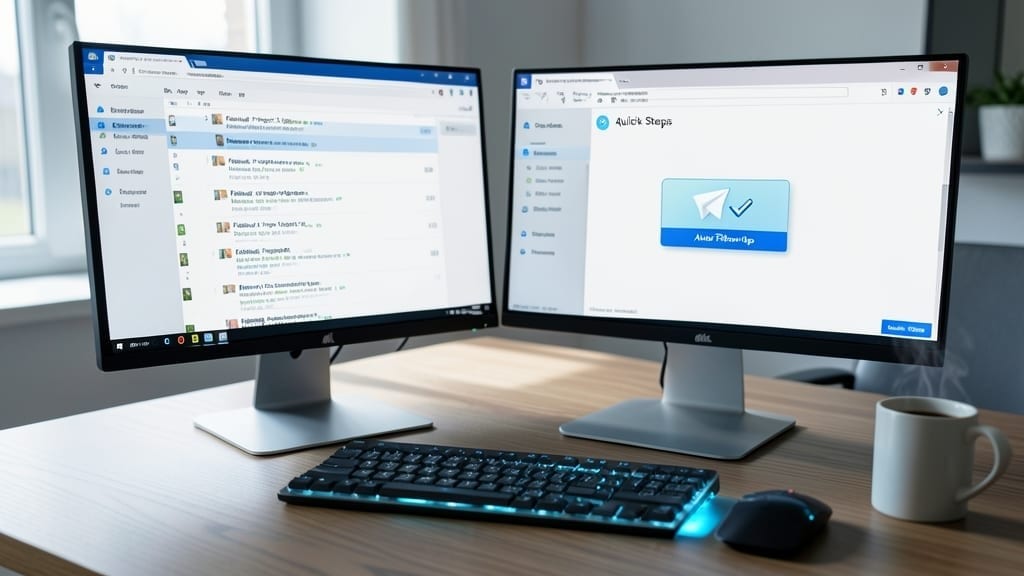
Tired of manually replying to the same types of emails day after day? Outlook Quick Steps turns repetitive tasks—like scheduling meetings or sending follow-ups—into single-click actions, cutting your email workload by up to 30%. This built-in feature lets you create custom shortcuts that combine multiple actions (e.g., flagging, categorizing, or forwarding) into one seamless step.
With zero coding required, you can set up Quick Steps in seconds. For example, create a "Follow-Up" step that flags an email, moves it to a specific folder, and adds a reminder—all with one click. Sales teams can use it to auto-schedule calls, while support teams can instantly categorize and prioritize tickets. The best part? These steps sync across devices, so your workflow stays consistent whether you're in the office or remote. ✨
Using Power Automate for Cross-App Workflows

Tired of manually transferring data between Excel, SharePoint, and Teams? Power Automate bridges these apps with zero-code workflows, turning repetitive tasks into automated processes. For example, sync new Excel rows to SharePoint lists instantly or auto-post project updates to Teams channels—no VBA or scripts required.
Start with pre-built templates like "When a new row is added in Excel, create a new item in SharePoint" or "Post a Teams message when a file is updated in OneDrive." The drag-and-drop designer makes it easy to connect triggers (e.g., form submissions) to actions (e.g., sending approval emails), while conditional logic handles complex rules. Teams in finance or project management often save 10+ hours/month by eliminating manual data entry.
This tool shines for teams drowning in spreadsheets and disjointed tools. Finance teams can auto-generate reports from SharePoint data, while project managers keep Teams channels updated in real-time. ⚡
Leveraging Excel Quick Analysis Tools
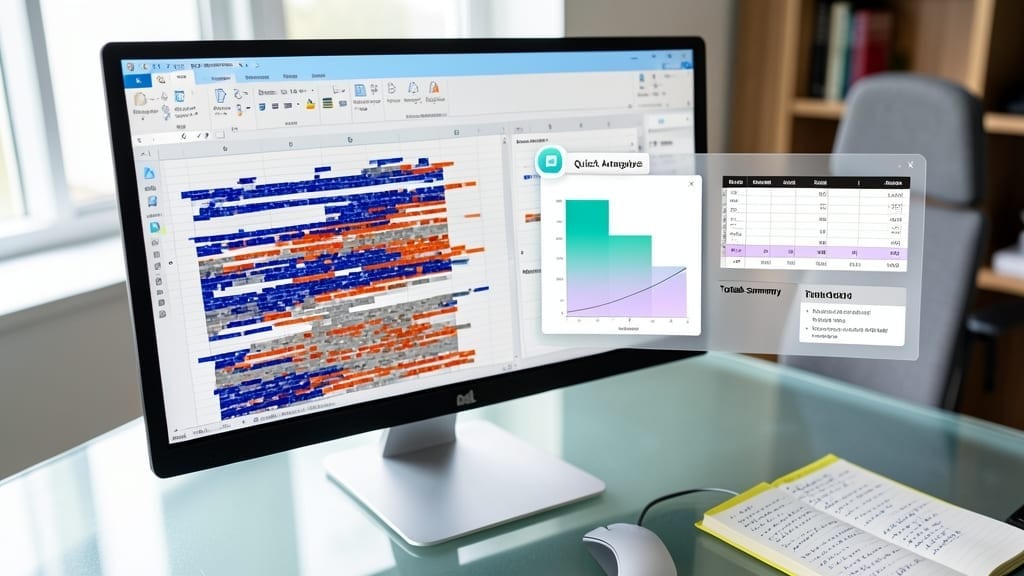
Tired of manually creating charts and pivot tables from raw data? Excel’s Quick Analysis Tools lets you turn messy datasets into polished insights with a single click—no formulas or complex menus required.
Select any data range, and the tool instantly suggests relevant charts, tables, and totals tailored to your selection. Need a bar chart for sales trends? Done. A pivot table for inventory? Ready in seconds. The tool even offers conditional formatting and sparkline visualizations to highlight patterns without leaving your spreadsheet.
Perfect for analysts, managers, and anyone drowning in data, this feature cuts analysis time by up to 70%—letting you focus on decisions instead of setup. ✨
Collaborative Editing in Real-Time with Word
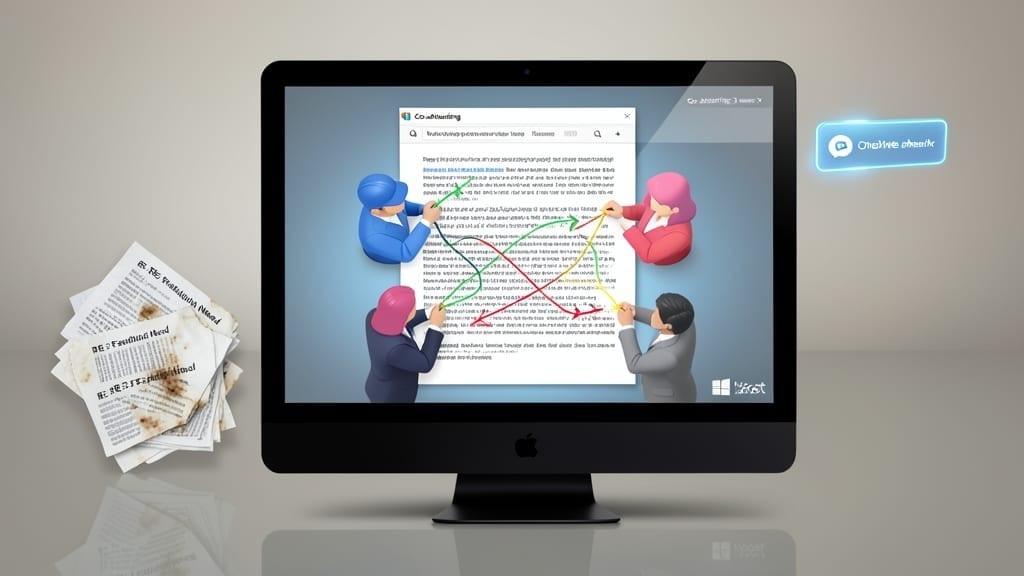
Tired of email chains clogging up your inbox while waiting for feedback on a critical document? Microsoft Word’s real-time co-authoring lets multiple users edit the same file simultaneously—no version conflicts, no endless "Send Changes" emails.
Enable it in seconds by sharing a link via OneDrive or SharePoint, where up to 50 users can edit together. Track changes appear instantly, and the version history keeps a backup of every revision. Legal teams use it for contracts, while marketing teams finalize campaigns in real time—cutting review cycles by 50% compared to traditional back-and-forth editing.
Perfect for distributed teams or fast-moving projects where delays cost time and money. Try it on your next draft and watch collaboration transform from chaotic to seamless. ✨
OneDrive Smart Sync for Offline Access

Tired of losing work because your Wi-Fi dropped during that critical presentation? OneDrive Smart Sync ensures your files stay accessible offline while keeping everything up-to-date when you reconnect. This feature is a game-changer for professionals who work remotely or in areas with unreliable connectivity.
With Smart Sync, you choose which files to keep locally—no need to sync your entire OneDrive library. Changes made offline sync automatically when you’re back online, and you can even select specific folders to prioritize. The background sync works seamlessly, so you never have to worry about missing updates or losing progress.
This tool is perfect for field teams, remote workers, and anyone who needs reliable access to files on the go. Whether you're drafting a report on a train or reviewing documents in a meeting with no internet, Smart Sync keeps you productive. ✨
Teams Meeting Transcripts and AI Summaries

Tired of spending hours manually transcribing meetings or chasing down action items? Microsoft Teams’ built-in AI tools can now auto-generate transcripts and summaries in seconds—no third-party apps required. Simply enable the feature during your next meeting, and let Teams handle the heavy lifting.
The AI-powered transcript captures every word spoken, while the summary tool distills key decisions, action items, and deadlines into a concise recap. You can even export transcripts to Word or SharePoint for future reference. With real-time captions and speaker attribution, this feature is a game-changer for remote teams and busy executives.
Perfect for managers, project leads, and anyone drowning in meeting follow-ups, this tool cuts post-meeting work by 3+ hours weekly. Just turn it on and let AI handle the note-taking—so you can focus on what matters most. ✨
PowerPoint Designer for Professional Slides
Tired of spending hours tweaking slide layouts when you should be delivering value? PowerPoint Designer leverages AI to instantly upgrade your presentations with professional templates, fonts, and color schemes—all with a single click.
This free tool analyzes your content and suggests premium-quality designs that align with your brand. Need a sleek corporate look? It handles it. Prefer a minimalist style? No problem. The zero-configuration setup means you get polished results without design expertise, while the real-time feedback helps refine slides as you build them.
Perfect for trainers, executives, and educators who need consistent, high-impact slides across multiple decks. ⚡
SharePoint Hub Sites for Centralized Team Portals
Tired of wasting time digging through emails and folders for the latest project files? SharePoint Hub Sites turn chaos into clarity by creating a single, searchable hub for all your team’s resources—documents, news, and tasks—right in Microsoft 365.
With pre-built navigation, newsfeeds, and document libraries, Hub Sites eliminate the need for scattered file shares or endless email chains. The modern design tools let you customize layouts to match your brand, while deep integration with Teams and OneDrive keeps everything synced. Studies show teams using Hub Sites spend 60% less time searching for files, freeing up hours for actual work.
Perfect for marketing teams managing campaigns, HR departments tracking policies, or project managers coordinating cross-departmental work, Hub Sites turn SharePoint from a file storage tool into a collaborative command center. ✨
Microsoft To Do for Task Prioritization

When your inbox is flooded with emails, Teams chats overflowing, and Planner tasks piling up, Microsoft To Do becomes your secret weapon for clarity. It doesn’t just list tasks—it syncs across Outlook, Teams, and Planner, ensuring high-priority items rise to the top while filtering out the noise. The color-coded categories (like work, personal, or project-specific) let you visually prioritize, while recurring task reminders keep deadlines top of mind without manual follow-ups.
The real magic happens with cross-app integration: flag an email in Outlook, and it instantly appears as a task in To Do with the same due date. Need to assign a task from Planner? Drag and drop it into To Do for personal tracking. Plus, the AI-powered My Day feature automatically surfaces the most important tasks first thing in the morning, so you start your day focused. It’s like having a personal assistant for your to-do list, but without the hourly paycheck. 💻
This tool is a game-changer for overloaded managers, project leads, and anyone juggling multiple tools. Whether you’re coordinating cross-departmental projects or just trying to keep your personal life from spilling into work emails, To Do keeps everything in one place—so you can stop context-switching and start executing. ⚡