
Software
Microsoft Teams channels can become overwhelming if not managed properly. These 10 best practices will help you organize communication, boost productivity, and keep your team’s workflow running smoothly—without the digital clutter.
Use Standardized Channel Naming Conventions
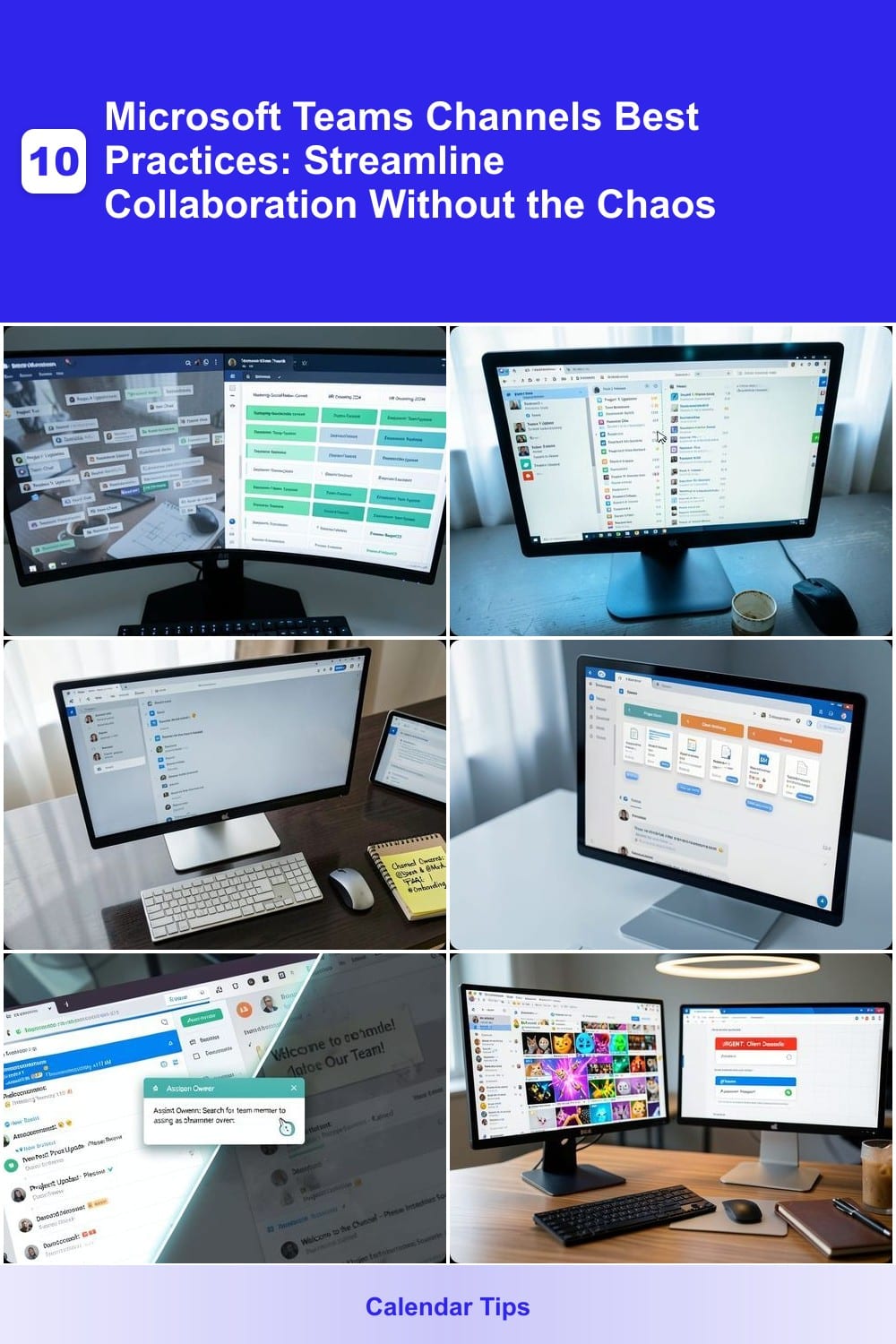
Struggling to find the right channel when you need it most? A standardized naming convention turns chaos into clarity—like a digital filing system where every folder has a predictable label. Instead of vague names like "Project X Updates" or "Team Chat," use a structured format like Department-Team-Purpose, such as Marketing-Content-Collab or Finance-Billing-Q3. This makes channels instantly searchable and eliminates the "Did we already have a channel for this?" guesswork.
Microsoft Teams doesn’t enforce naming rules, but consistency saves time. Start by auditing existing channels—group them by department, then team, and finally purpose (e.g., HR-Onboarding-Docs). Use hyphens for readability, and avoid special characters that could break search functions. Pro tip: Add a prefix like "PRIVATE-" for confidential channels to filter results quickly. This system works especially well for large teams or remote workforces where context-switching is constant.
Teams with cross-functional projects (like product launches) benefit most—imagine a new hire instantly finding Product-Launch-Creative instead of scrolling through 20 similar channels. Try it today, and watch your team’s efficiency climb. 💡
Limit Channels to Essential Topics Only

Ever felt paralyzed by choice when scrolling through a packed Teams sidebar? The solution isn’t adding more labels—it’s cutting down. Research shows that too many channels (10+) trigger decision fatigue, making teams less productive. Instead of creating channels for every minor task, focus on core projects or departments—like Product-Launch or HR-Policies—and archive the rest.
Start by auditing your workspace: ask yourself, "Is this channel active in the last 30 days?" If not, archive it with one click (via the three-dot menu). Microsoft Teams keeps archived channels searchable, so nothing’s lost—just hidden. For new teams, set a rule: one channel per major initiative until you hit a critical mass. This keeps your sidebar scannable and reduces the mental load of managing dozens of tabs.
This approach works best for small-to-mid-sized teams or departments where focus is key—like marketing or product development. A lean channel list means faster navigation and fewer distractions. Try it, and watch your team’s productivity climb. 💪
Leverage Channel Descriptions for Context
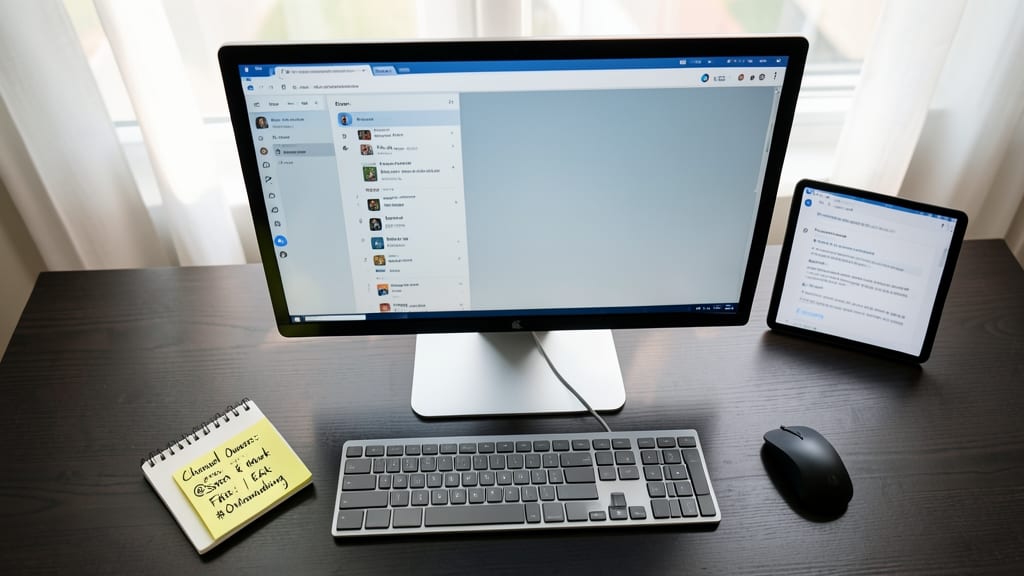
New hires and remote team members often waste time guessing where to post questions or find resources. A well-crafted channel description eliminates that confusion by acting as a built-in FAQ—clearly stating the channel’s purpose, owners, and key topics upfront.
Include specifics like "Primary owners: Alex & Jamie" or "Topics: Project updates, feedback, and documentation" in the description field. This ensures everyone knows exactly where to go for help without asking. You can even add a link to a shared doc for deeper context. Teams automatically surfaces this info when users hover over the channel name.
This practice is especially valuable for cross-functional teams or large organizations where channels can overlap. A quick glance at the description saves minutes daily—adding up to hours saved weekly. ✨
Organize with Channel Tabs for Quick Access
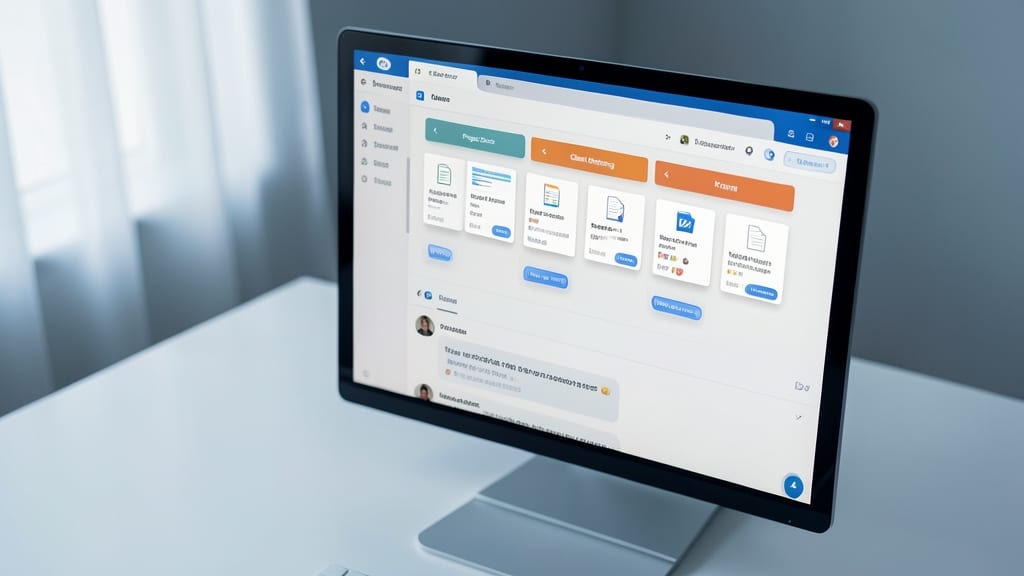
Tired of digging through endless posts to find that one file or link? Channel tabs in Microsoft Teams turn clutter into organized sections—like a digital filing cabinet for your team’s workspace.
With tabs, you can group files, links, and apps under labels like ‘Project Docs’ or ‘Client Onboarding’, making it effortless to switch between tools without scrolling. Need to share a Trello board alongside meeting notes? Just pin it to a tab. The best part? Tabs sync across devices, so your team stays aligned whether they’re on desktop or mobile.
This is a game-changer for project managers or teams juggling multiple tools—like marketers balancing ads, analytics, and creatives. Try it today and watch your workflow simplify! ✨
Set Clear Channel Ownership Rules
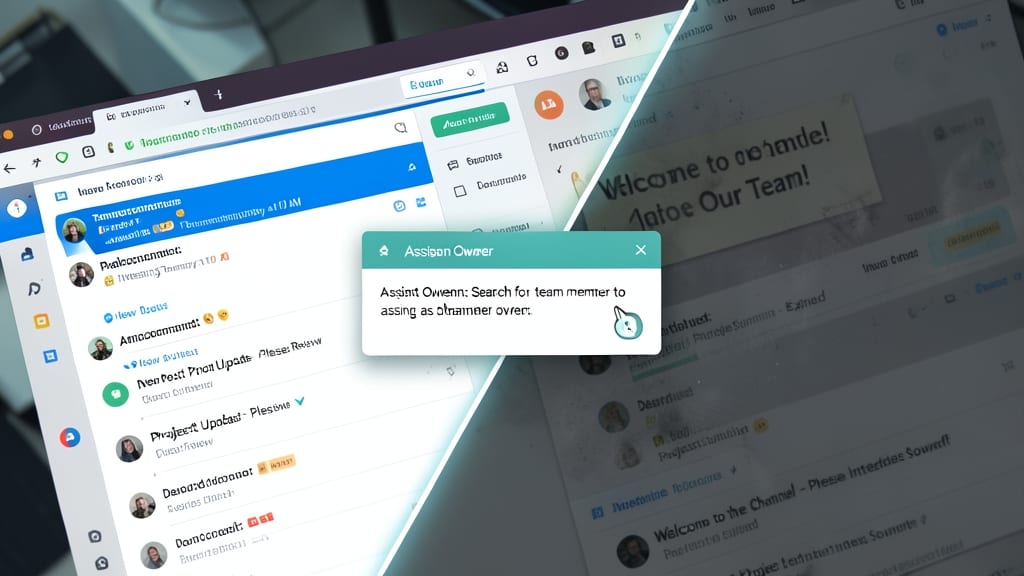
When channels sit abandoned or cluttered with outdated posts, your team’s workflow suffers—and no one knows who’s responsible. Assigning channel owners is the simplest way to assign accountability, ensuring updates, permissions, and moderation stay on track without falling through the cracks.
Start by designating 1-2 team members per channel as owners in the channel settings. These owners can then manage permissions (e.g., restricting who can post or edit), pin important updates, and archive stale conversations—all while keeping the channel aligned with your team’s goals. Microsoft Teams even lets you set custom roles like "Editor" or "Viewer" to fine-tune access, so sensitive discussions stay secure.
This rule works best for project-based teams or departments where ownership shifts (like marketing campaigns or product launches). It’s also a game-changer for remote teams where clear roles prevent miscommunication. ✨
Use Channel Notifications Wisely
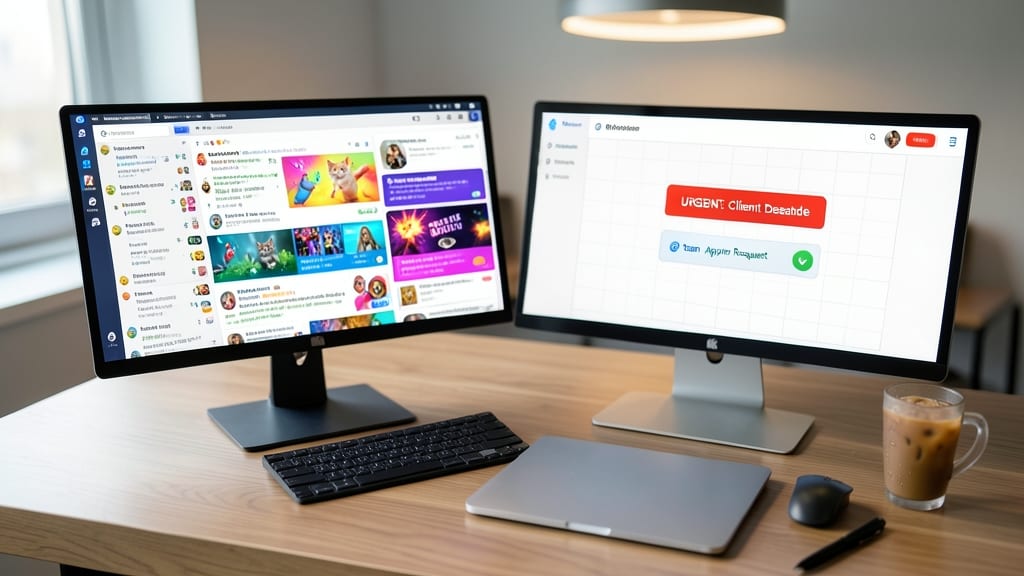
Drowning in Teams notifications? The solution isn’t ignoring them—it’s customizing them. Your inbox shouldn’t turn into a ping-fest every time someone posts a GIF or shares a link. Instead, fine-tune alerts to focus on what truly matters, like @mentions or urgent project updates, while muting the noise.
Start by adjusting your notification preferences in Teams: toggle off "All new content" for channels where you don’t need real-time updates, and enable custom keywords (e.g., "urgent," "action required") to highlight critical messages. For high-traffic channels, set alerts to daily digests instead of instant pings. This keeps your workflow smooth without missing deadlines.
This approach works best for busy teams juggling multiple projects or remote workers who need to stay focused. A well-tuned notification system means fewer distractions and more time for actual work. ✨
Archive Inactive Channels Regularly
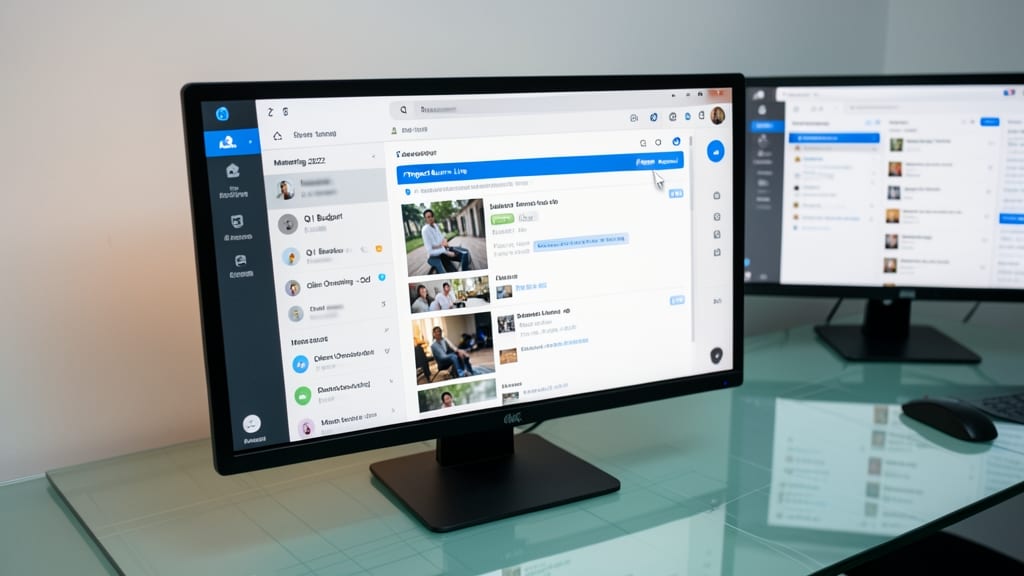
Your Teams workspace isn’t a museum—old projects shouldn’t take up prime digital real estate. Archiving inactive channels (via the three-dot menu) instantly declutters your sidebar while preserving files and history for future reference. Microsoft Teams lets you restore archived channels in one click, so nothing gets permanently lost.
The real win? A cleaner interface means fewer distractions and faster navigation. Teams automatically hides archived channels from active lists, so your team focuses only on what matters. Set a quarterly reminder to review channels—just 10 minutes can remove years of digital clutter.
Perfect for growing teams or seasonal projects (think holiday campaigns or temporary cross-department initiatives). Keep your workspace lean without losing institutional knowledge. ✨
Integrate Third-Party Apps Strategically
Not every tool needs to live in your Teams channels—especially if it clutters your workflow. Instead of embedding every app under the sun, strategically add only the essentials like Trello for project tracking or Google Drive for document sharing when they directly support the channel’s purpose.
Microsoft Teams lets you integrate third-party apps via tabs, but the key is selectivity. For example, a Marketing-Content-Collab channel might only need a Canva tab for design assets, while a Sales-Onboarding channel could host a Zoom tab for training videos. This keeps your interface clean while ensuring tools are accessible when needed.
Teams with remote members or cross-functional projects benefit most from this approach—it reduces context-switching and keeps focus on what matters. Test integrations with a small group first to gauge usefulness before rolling them out widely. ✨
Train Team Members on Channel Etiquette
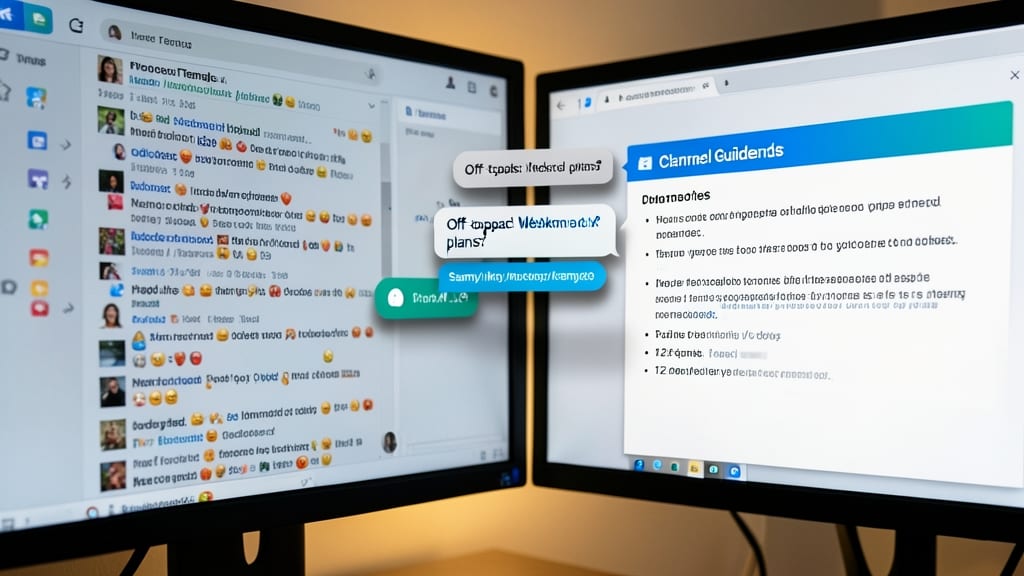
Ever scrolled through a Teams channel only to find off-topic chatter, spammy links, or endless side conversations buried in the main thread? A few simple posting guidelines can transform chaos into clarity—keeping discussions focused and productive.
Start by pinning a Channel Guidelines message with clear rules like "No spam or promotional content" and "Use threads for side discussions" to keep the main feed clean. Encourage team members to @mention sparingly—only when necessary—to avoid notification overload. For visual teams, include a quick-reference graphic (e.g., a flowchart for threading) to reinforce best practices.
This approach works best for remote teams or cross-functional groups where communication styles vary. A little training upfront saves hours of cleanup later. ✨
Audit Channels Quarterly for Optimization

Set a recurring reminder every three months—because even the best-organized Teams workspace can drift into chaos over time. A quarterly channel audit ensures you catch duplicates, outdated descriptions, or channels that no longer align with your team’s priorities before they become a distraction.
Start by reviewing each channel’s purpose and activity level—archive or delete those that are inactive or redundant. Update descriptions and ownership to reflect current projects, and use Microsoft Teams’ built-in analytics to spot underused channels. This simple habit keeps your workspace lean, searchable, and focused on what truly matters.
Teams with dynamic workflows—like marketing, product development, or customer support—will see the biggest benefits. A quick audit prevents the "channel graveyard" from slowing down your team. ✨