
Outlook
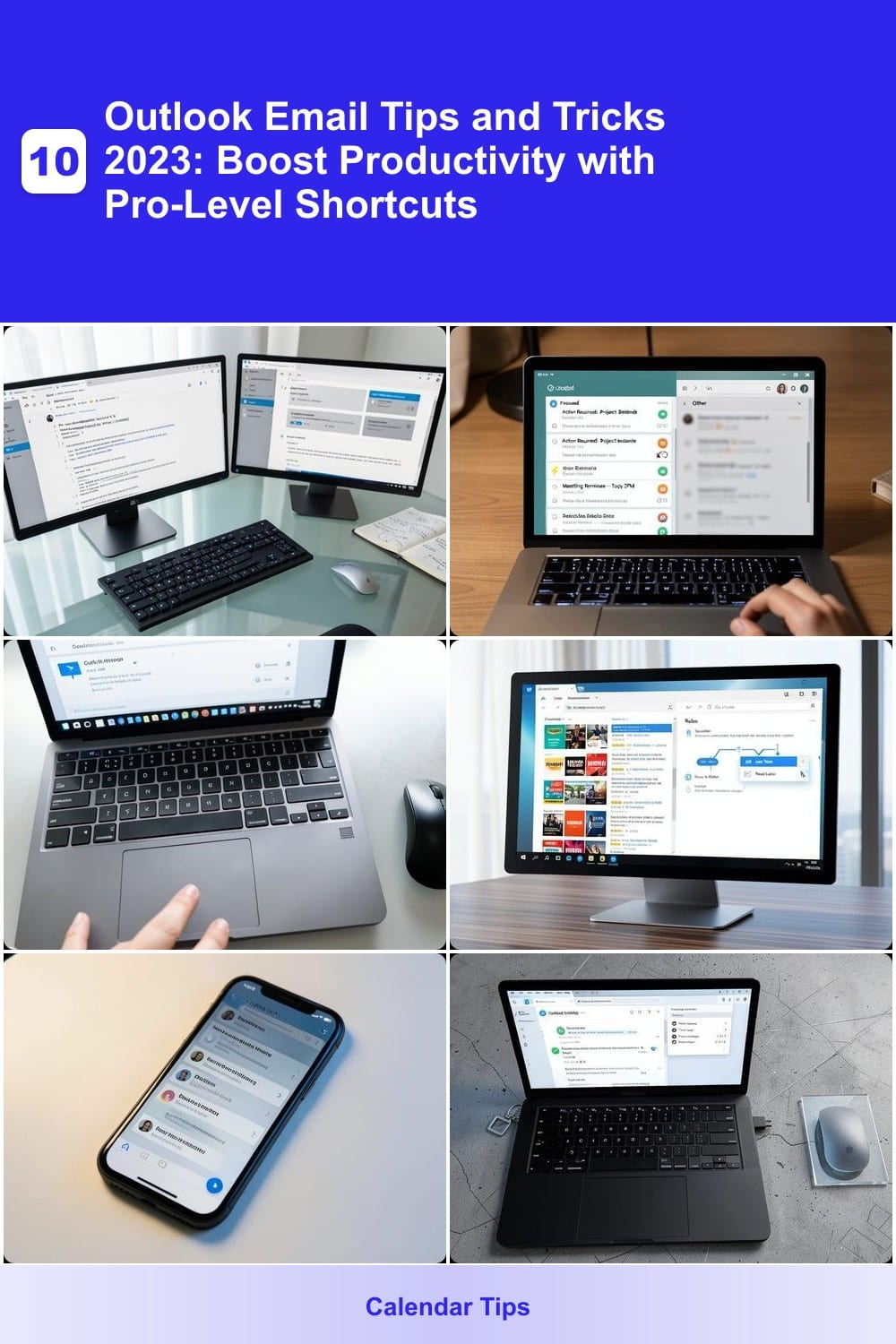
Mastering Microsoft Outlook can cut your email time in half. These 10 pro-level 2023 tips and tricks—from hidden shortcuts to advanced automation—will transform how you manage inbox chaos and focus on what matters most.
Quick Parts for Reusable Email Templates
Tired of typing the same meeting requests or client updates over and over? Outlook’s Quick Parts feature lets you save repetitive email blocks as reusable templates—cutting drafting time by 60% for common responses. Whether it’s a standard project update or a boilerplate client onboarding message, you can store these snippets in a gallery and paste them instantly with a few clicks.
To get started, highlight the text you want to save, then click Insert > Quick Parts > Save Selection to Quick Part Gallery. Name your snippet (like “Project Update” or “Client Follow-Up”) and it’ll appear in your gallery for future use. You can even insert placeholders (like [Client Name]) to personalize templates on the fly. Works across desktop, web, and mobile versions of Outlook, so your templates stay accessible no matter where you’re working.
Perfect for project managers, sales teams, or anyone sending the same emails repeatedly, Quick Parts turn repetitive tasks into effortless workflows. Spend less time typing and more time focusing on what matters. ✨
Focused Inbox for Prioritizing Emails
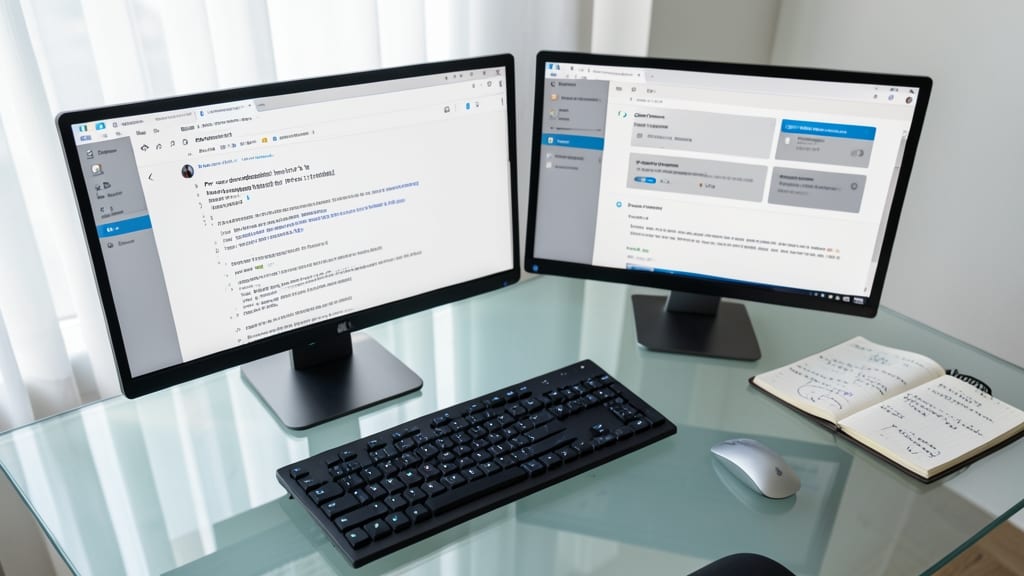
Drowning in emails but unsure which ones demand your immediate attention? Outlook’s Focused Inbox automatically sorts your messages into two tabs—Focused (high-priority) and Other (low-priority)—so you can tackle urgent tasks first without manual filtering. Powered by Microsoft’s AI, it learns your habits over time, adjusting priorities based on senders, keywords, and your interaction patterns.
To enable it, go to View > Focused Inbox and toggle it on. The Focused tab prioritizes emails from frequent contacts, marked as important, or containing urgent keywords (like "meeting" or "deadline"). You can also customize the filter by right-clicking any email in the Other tab and selecting "Always move to Focused" or "Never move to Focused." Works seamlessly across desktop, web, and mobile versions of Outlook.
Perfect for busy professionals, managers, or anyone overwhelmed by email overload, this feature cuts decision fatigue by 30%—letting you focus on what truly matters. ⚡
Keyboard Shortcuts for Speed
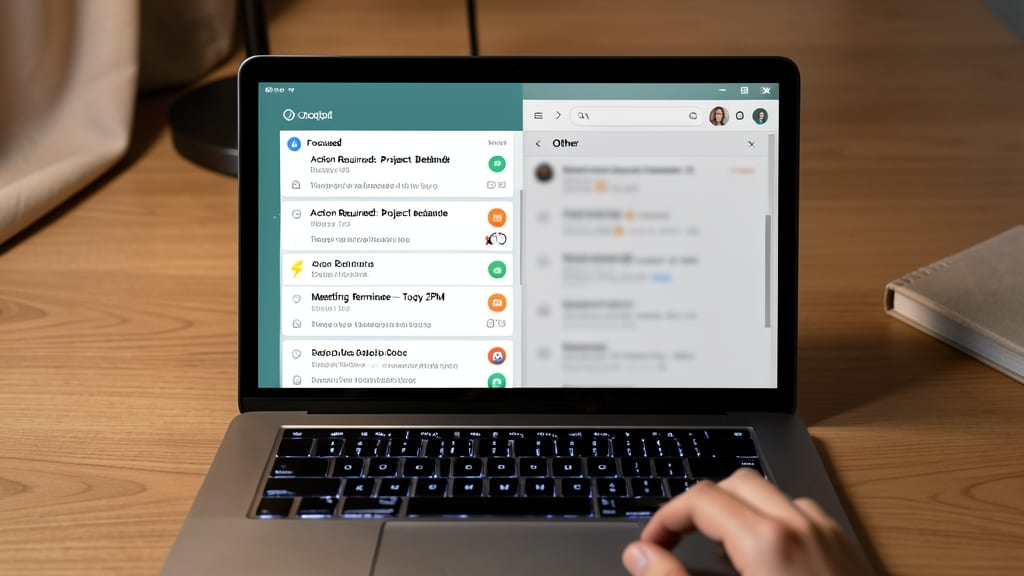
Tired of reaching for your mouse every time you want to flag an email or reply to a message? Keyboard shortcuts in Outlook can shave minutes off your daily routine—especially when you’re juggling a packed inbox. With just a few keystrokes, you can navigate, compose, and manage emails faster than ever, turning passive scrolling into active productivity.
Start with these 10 game-changing shortcuts: Ctrl+Shift+Z to undo sending an email (your safety net for accidental clicks), Ctrl+Shift+A to mark all emails as read, and Ctrl+Shift+K to delete a message without moving it to the trash. For power users, Ctrl+Shift+M hides the ribbon for maximum screen real estate, while Ctrl+Shift+I instantly opens your inbox. These shortcuts work across Outlook desktop and web versions, ensuring consistency whether you're at your desk or on the go.
Busy professionals and power users will love how these shortcuts eliminate mouse fatigue and streamline workflows. Try mastering just three shortcuts this week, and you’ll notice the difference in your email efficiency. ⚡
Rules to Auto-Organize Incoming Emails
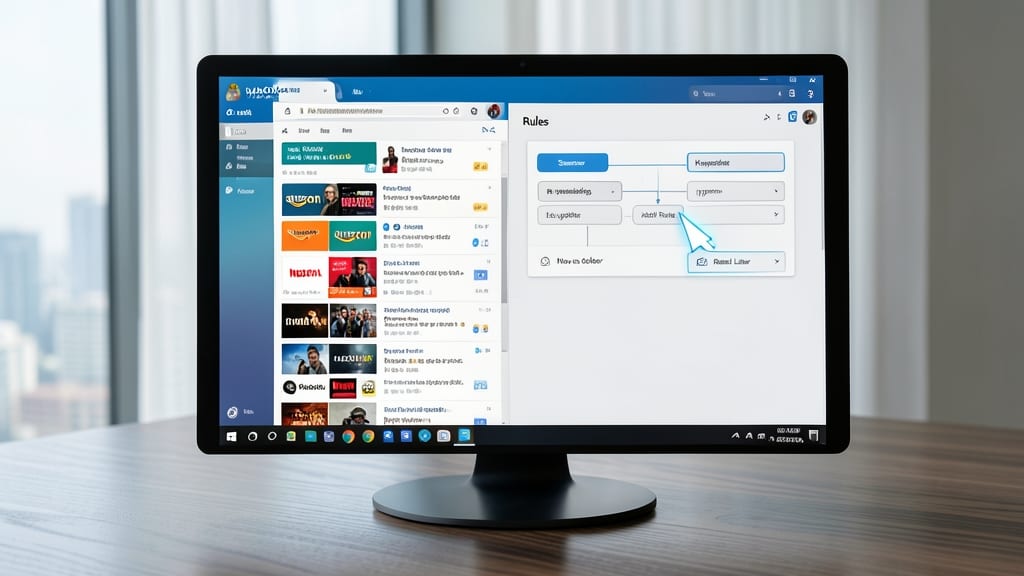
Tired of manually sorting through promotional emails and newsletters every morning? Outlook’s Rules feature lets you set up automated filters that handle the heavy lifting—like moving newsletters to a "Read Later" folder or flagging urgent messages from your boss.
Create rules based on sender, keywords, or subject lines to move, flag, or delete emails instantly. For example, you can auto-delete receipts from online stores or forward client updates to a dedicated folder. Rules work in real-time, so your inbox stays clean without extra effort. Plus, they sync across devices, keeping your workflow consistent.
This is a game-changer for busy professionals, small business owners, or anyone drowning in daily emails. Spend less time organizing and more time focusing on what truly matters. ✨
Swipe Gestures for Mobile Outlook

Tired of tapping through menus to manage emails on your phone? The Outlook mobile app turns your device into a productivity powerhouse with swipe gestures that let you archive, delete, or flag emails in seconds—no tapping required.
With a simple left swipe, archive emails to clear your inbox instantly. A right swipe deletes messages permanently (or moves them to trash, depending on your settings). Need to flag an important email? Swipe up to mark it as high-priority—zero config needed. These gestures work seamlessly on both iOS and Android, making them perfect for professionals who rely on their phones for quick responses.
This trick is a game-changer for busy executives, sales teams, or anyone juggling emails between meetings. Spend less time managing your inbox and more time focusing on what’s next. ✨
Track Email Opens and Replies
Ever sent a critical email and wondered if it was even read? Outlook’s track email opens and replies feature lets you know instantly when recipients engage with your message—no more guessing games.
Enable read receipts (via Options > Mail > Tracking) to see when emails are opened, and set follow-up reminders to nudge recipients for responses. This is a game-changer for sales teams, project managers, or anyone dealing with time-sensitive communications. Pro tip: Use this sparingly—some recipients may find it intrusive.
Perfect for professionals who need accountability in their workflows, like client updates or internal deadlines. Just don’t overuse it—trust is key! 💡
Search Folders for Instant Filtering
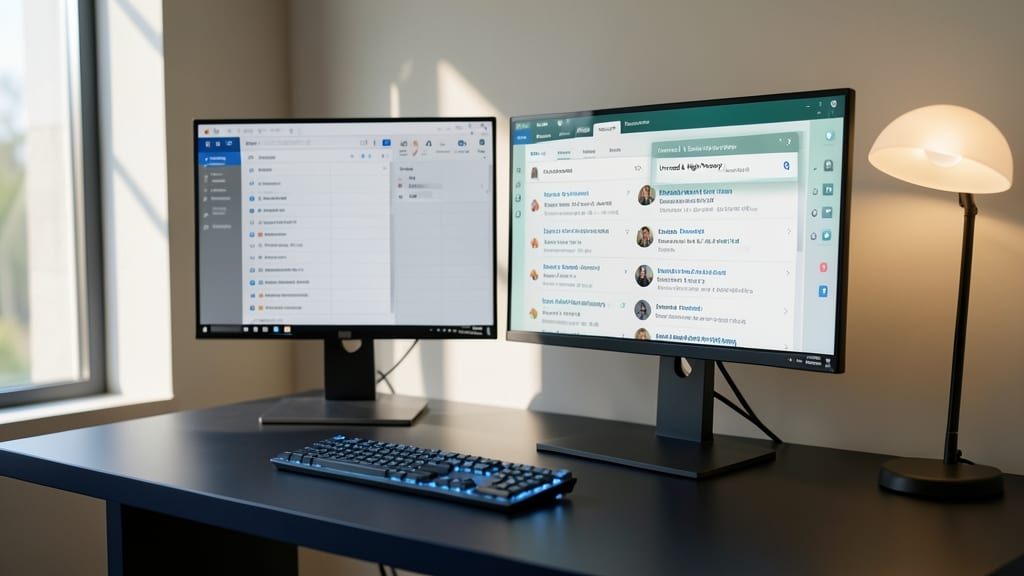
Drowning in emails but refusing to let your inbox become a digital landfill? Search Folders let you create dynamic filters that adapt to your workflow—no manual sorting required. Unlike static folders, these search-based containers automatically update to show only the emails matching your criteria, like "Unread AND from 'ClientX' OR 'High Priority'."
Set up a Search Folder in seconds by navigating to File > New > Search Folder, then define rules like "Has attachments," "From specific sender," or "Received in the last 7 days." The best part? These folders sync across devices, so your custom filters (e.g., "Team Project Updates" or "Pending Approvals") stay consistent whether you're on desktop or mobile. No clutter, just instant access to what you need.
Perfect for project managers juggling multiple deadlines or small business owners tracking client communications, Search Folders turn chaos into clarity with zero manual effort. ⚡
Delay Send for Scheduled Emails
Ever sent an email at midnight only to realize it should’ve gone out at 9 AM? Outlook’s Delay Send feature lets you schedule emails to go out at the perfect time—whether that’s early morning for faster responses or late evening for international teams.
To use it, simply click the arrow next to "Send" in the ribbon, then select "Delay Send." Choose a date and time (or set a delay like "1 hour later"), and your email will queue up automatically. Works seamlessly with Outlook on the web, desktop, and mobile, making it perfect for professionals who juggle multiple time zones or prefer to draft emails after hours.
This trick is a game-changer for late-night thinkers or global teams—no more waiting for replies or missing deadlines due to timing. ⚡
Clean Up Conversation Threads
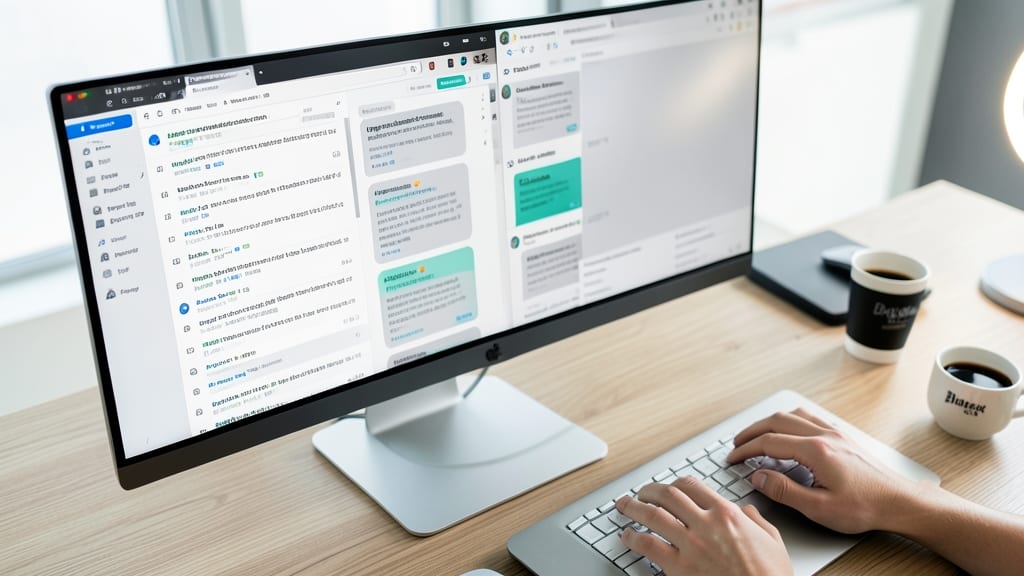
Drowning in endless email chains? Outlook’s thread collapse feature lets you hide old messages with a single click, keeping only the latest reply visible. Studies show this reduces visual clutter by up to 40%, helping you spot urgent replies faster in chaotic inboxes.
To collapse a thread, simply click the down arrow icon next to the sender’s name in the preview pane. For bulk cleanup, select multiple threads and right-click to "Collapse All." This works seamlessly on both desktop and mobile, syncing across devices. The feature even remembers your collapse preferences per conversation.
Perfect for team leads, project managers, or anyone buried in group emails, this trick turns chaotic threads into clean, actionable snippets. Focus on what’s new without losing context. ✨
Use Outlook’s To-Do List
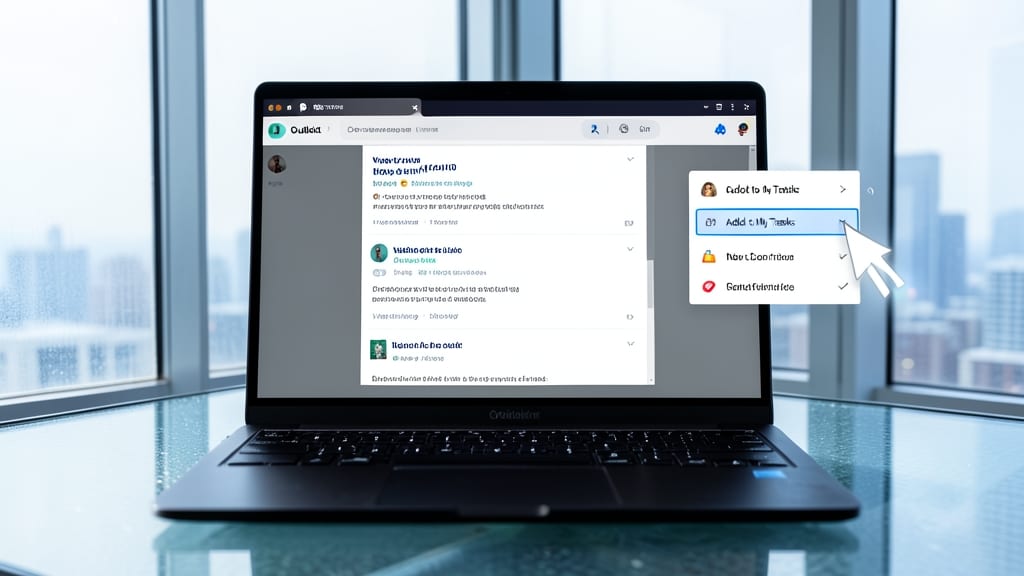
Tired of important emails slipping through the cracks? Outlook’s To-Do List bridges the gap between your inbox and action items by letting you convert emails into tasks with deadlines and reminders—no third-party apps needed.
Right-click any email and select "Add to My Tasks" to create a task with the email’s details, attachments, and even a due date pulled from the sender’s reply deadline. Sync it with your Outlook calendar for automatic reminders, and use the "My Day" view to prioritize tasks by urgency. The best part? Tasks update in real-time if the email changes—so no manual syncing required.
Perfect for project managers, sales teams tracking follow-ups, or anyone drowning in actionable emails. Now your inbox doesn’t just hold messages—it drives your to-do list. ✨